Aug 22, 2022
Comments
QQuickWidget is a QWidget subclass, originally introduced in Qt 5.3. It is the bridge between traditional widgets and the world of QML and Qt Quick. In this post we are going to take a look at its evolution and the latest improvements in the upcoming Qt 6.4 release, because there are some quite significant changes happening under the hood.
The contents of a widget-based window and a window showing a Qt Quick scene are rendered in a quite different way: the latter relies on 3D graphics APIs (*), such as OpenGL, Vulkan, Metal, or Direct 3D, whereas a widget-based user interface is rendered using QPainter and then blitted to the native window by windowing system specific means, for example, either BitBlt or UpdateLayeredWindowIndirect in the case of Windows. A QQuickWindow, or its convenience subclass QQuickView, are not directly usable in the QWidget hierarchy of a top-level widget window. (after all, QQuickWindow itself is a true QWindow, nothing to do with the world of QWidgets)
(*) For completeness it needs to be mentioned that Qt Quick does have a feature-limited software backend that renders what it can from the scene graph using QPainter, but that alone does not make it usable within a QWidget hierarchy.
How does one combine the two worlds then?
And why would one want to do so?
A good example is one of Qt's tools: Qt Design Studio. While it may at first appear to be an application created fully with the traditional widgets, it is in fact a combination of widgets of Qt Quick, using the best suited technology for each of its views and panels.
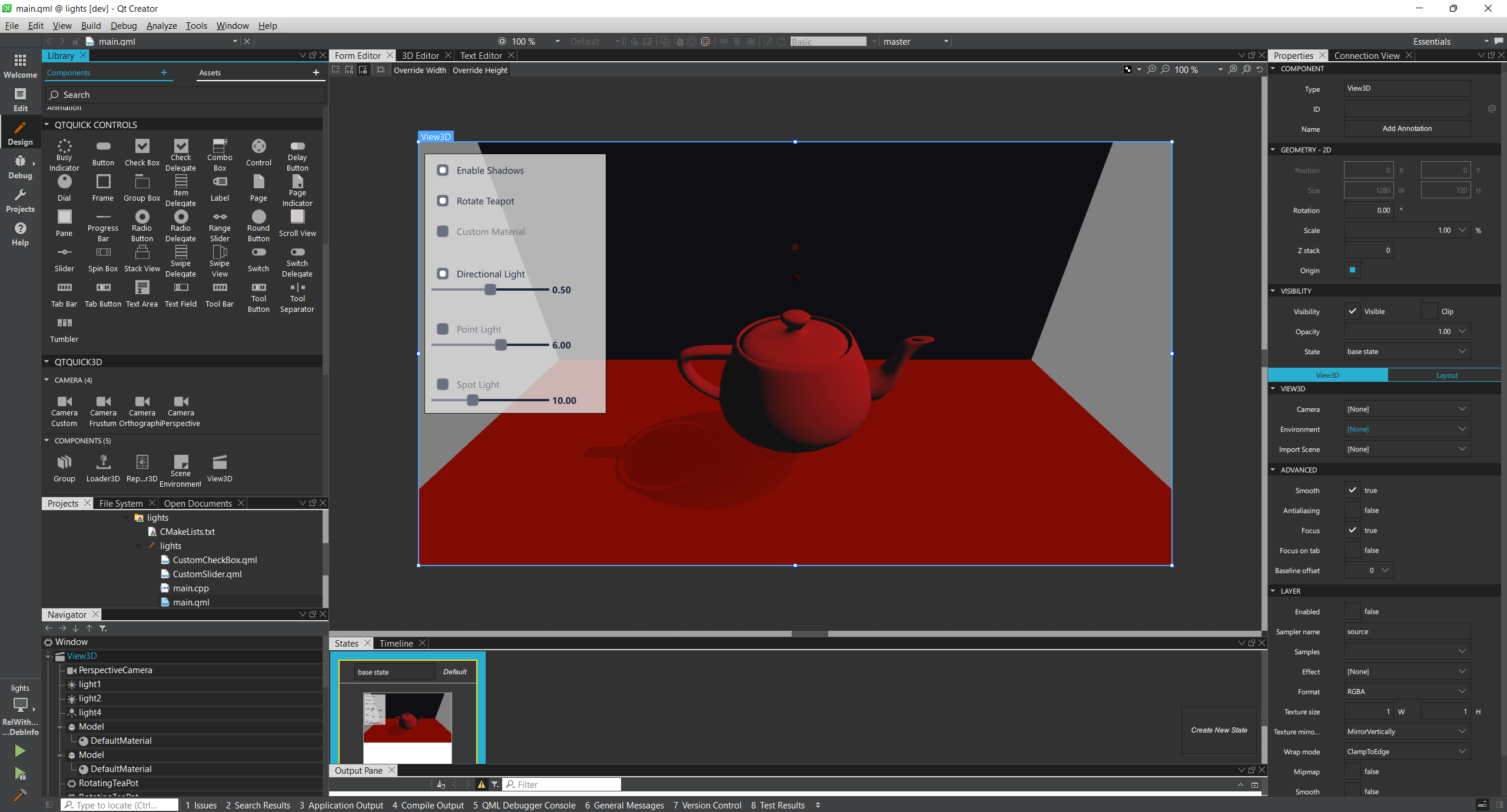
This Qt Creator window with the Design view open for a Qt Quick 3D example is in fact composed of four Qt Quick scenes and a single widget hierarchy, with the top-level window being a QWidget. For example, the properties panel on the right, the component grid on the left, or the state view on the bottom are all implemented with QML and Qt Quick.
The state of things as of Qt 5.1
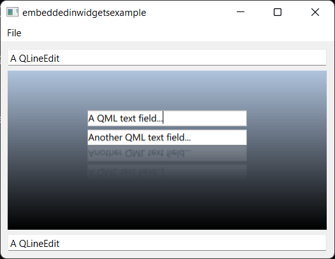
Before QQuickWidget, the solution to add Qt Quick content into a QWidget-based user interface was to use QWidget::createWindowContainer(), which is still a valid option today in some cases, but it comes with some potential limitations since there is no magic here: the QQuickWindow continues to be a proper native window in this case, Qt relies on the windowing system to ensure the window with Qt Quick content is positioned appropriately by making it a child window.
This is demonstrated by the embeddedinwidgets example that comes with Qt. From the windowing system's perspective this is not one but two windows. For simple cases, such as here, where we effectively just want the "foreign" Qt Quick content to occupy a rectangular area in the middle of our user interface, not having to worry about stacking, clipping, resizing, reparenting, or more complicated widgetish behavior, this works well.
Qt 5.3: QQuickWidget!
The story changed slightly with Qt 5.3. That release introduced QQuickWidget, backed by a fairly sizable and somewhat complex infrastructure internally. The complications stem from the fact that while a QQuickWidget (or a QOpenGLWidget, for that matter, which is built on the same infrastructure) is a true QWidget on the surface, the underlying rendering system (Qt Quick) knows nothing about widgets, backing stores, and such, and wants to produce frames using OpenGL, targeting a WGL/GLX/EGL/etc. surface. What happens under the hood is that the presence of such special, texture-based widgets trigger switching the corresponding top-level window over to being OpenGL-based, with a mini-compositor drawing quads textured with the content from the QQuick/OpenGLWidget children within that top-level combined with the QPainter-rendered widgets (i.e. the rest of the top-level window content) which now needs to be uploaded into a texture as well.
The full solution consists of the following components:
- The producer, such as QQuickWidget or QOpenGLWidget.
This implies that the producer is able to render to a texture. For Qt Quick in particular this was not trivial, but is enabled by QQuickRenderControl and QQuickRenderTarget (Qt 6) / setRenderTarget (Qt 5). - Various plumbing in the Widgets module. For instance, top-level widgets need to do tracking and bookkeeping to recognize whenever a special widget becomes visible in their widget hierarchy.
- The consumer: the compositor in the Gui module, implemented somewhere around QPlatformBackingStore. Complemented by functionality to get a texture out of the non-OpenGL widgets' backing images. In Qt 5.3 all this was implemented with directly with OpenGL, naturally.
In practice things are a bit more convoluted, for example QQuickWidget has to have support for the software backend of Qt Quick as well, which then requires it to be able to operate also like a traditional widget (with regards to paint events and alike), but let's set these complications aside for now and focus on the OpenGL side of things.
The QQuickWidget API is modeled after QQuickView. This makes it fairly intuitive, one can for instance do something like this:
QQuickWidget *w = new QQuickWidget;
w->setResizeMode(QQuickWidget::SizeRootObjectToView);
w->setSource(QUrl("qrc:/main.qml"));
mainWindow->setCentralWidget(w);
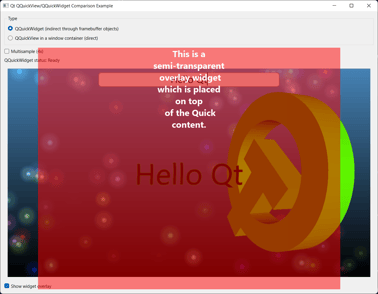
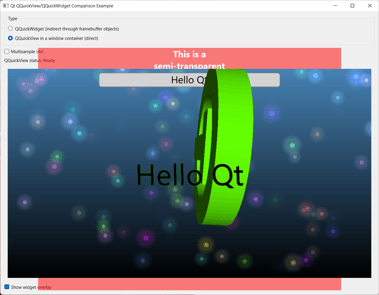
One of the classic Qt 5 examples of QQuickWidget is the QQuickWidget - QQuickView comparison. This demonstrates on of the benefits of QQuickWidget being a proper widget, as it allows a child widget to be placed on top as expected:
What about Qt 6?
In Qt 6 OpenGL is not the only option. On some platforms OpenGL is not even the default choice anymore.
For the 6.0 release Qt Quick and Qt Quick 3D got ported to use the new 3D API abstraction layer (QRhi), instead of working directly with OpenGL. This now means that launching a Qt Quick application on Windows renders using Direct 3D 11, whereas compiling and running the same application on macOS renders with Metal, unless the application explicitly requests using some other 3D API.
This left QQuickWidget and the supporting infrastructure out in the cold to a large degree. With the backing infrastructure being stuck with OpenGL and OpenGL texture objects, in Qt 6.0 and the first few releases afterwards QQuickWidget was only usable if the application's requested graphics API was OpenGL. Thus developers had two choices:
- Request OpenGL by calling QQuickWindow::setGraphicsApi() (**) and accept that that is what the application uses, regardless of the platform.
- Move to the native child window approach, and embed a QQuickView with QWidget::createWindowContainer(). This meant losing the widget benefits of QQuickWidget, but allowed using any of the supported graphics APIs at run time.
(**) For the curious, this being a static function is mandated by certain legacy from Qt 5.0 and even pre-5.0 times, and while not entirely ideal, it is not likely to change in the near future. It is not ideal that the API to use can only be specified on a global level, affecting all QQuickWindow/View/Widgets created afterwards, without the ability to switch to something else later on, but as parts of the backing internal infrastructure are either application global (render loops) or thread local at best (animation driver), switching over to finer granularity for these things is not entirely trivial. It is recognized however that this will need to change at some point, to allow control on a per-window basis.
What is new in Qt 6.4?
Comparing the documentation for 6.3 and 6.4 reveals that QQuickWidget finally drops the OpenGL requirement.
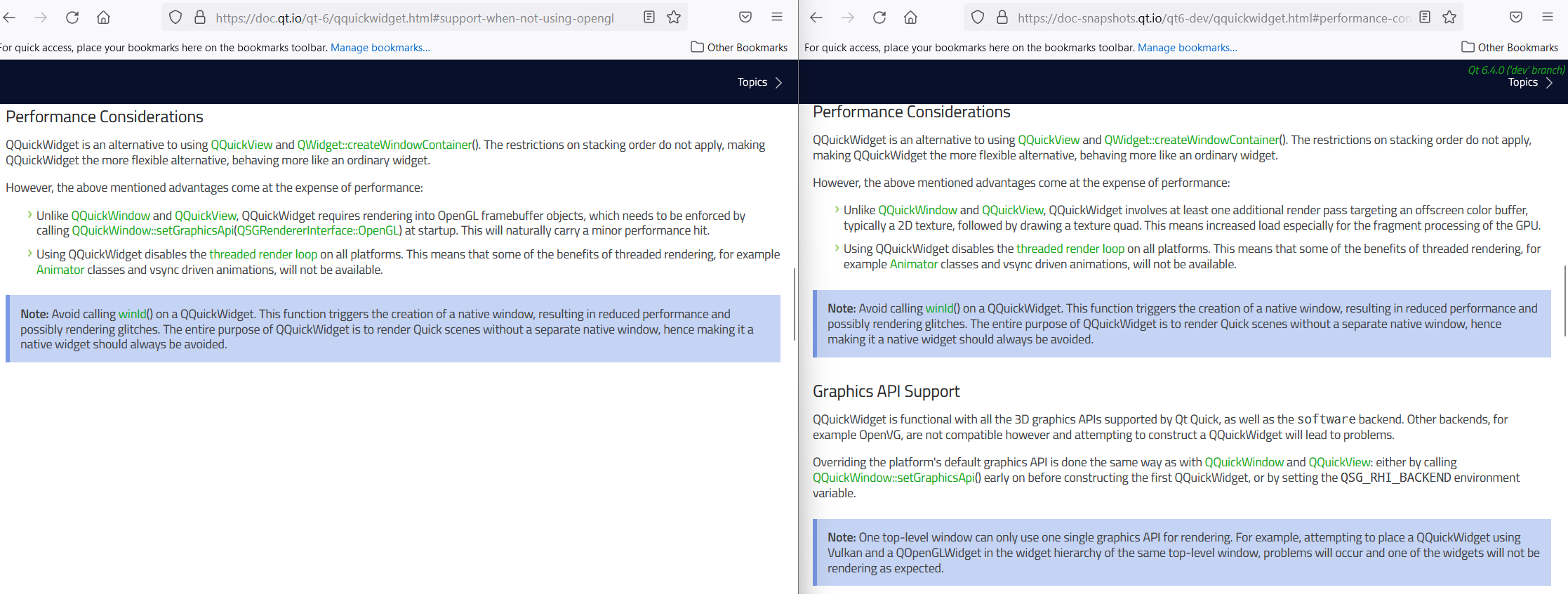
Therefore, applications using QQuickWidget no longer have to do something like QQuickWindow::setGraphicsApi(QSGRendererInterface::OpenGL); in their main(). (unless of course if they themselves do rendering directly with OpenGL)
The rules for choosing the 3D API match QQuickWindow and QQuickView. If the platform default is not deemed suitable, the application can still call setGraphicsApi() or set the appropriate environment variables.
Take this example application: https://git.qt.io/laagocs/qwsample
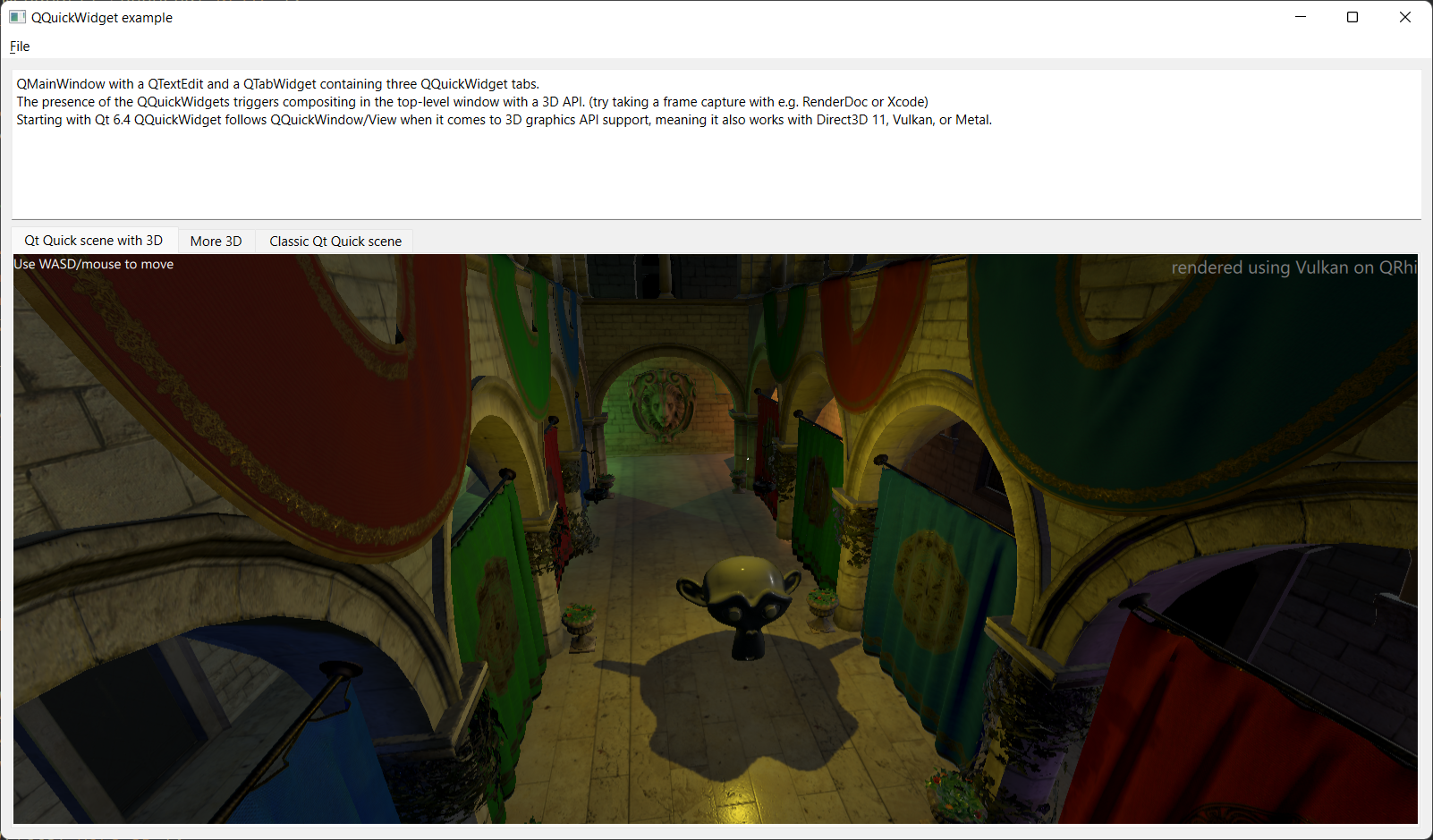
This puts three Qt Quick scenes, some with some true 3D content, into a QTabWidget. This is not very special on its own. What makes this test application more interesting is that it interactively asks for the 3D graphics API to use on startup and then calls QQuickWindow::setGraphicsApi() with the selection. This sort of user-controlled API selection is not something most real world application should do, but is useful for demonstration purposes.
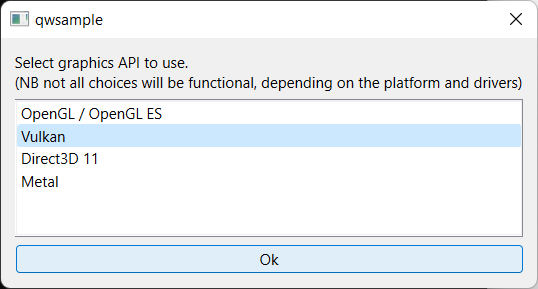
The Qt Quick scenes show the active API queried via GraphicsInfo in the top right corner. Additionally, one could launch with the environment variable QSG_INFO=1 to verify what is happening. Or take a frame capture with a tool like RenderDoc.
Some notes on the implementation as of Qt 6.4
For applications that employ multiple QQuickWidget instances, or perhaps a QOpenGLWidget or two within one top-level widget window, there is one important limit to keep in mind: all the widgets within the same window must use the same rendering API.
This is relevant in particular when one is using QOpenGLWidget: putting a QOpenGLWidget into a window mandates that any QQuickWidget in the same window is also rendering using OpenGL. When there is disagreement between the widgets, bad things will happen. (in less bombastic terms, the widget(s) losing the fight will not render their content)
In general, QOpenGLWidget is expected to function like before, and there are no changes in the public API. Even though internally certain things function quite differently than before, from the applications' perspective there should be no visible changes.
To make all this possible, the backing infrastructure had to undergo a number of changes:
- When it comes to the producers (QQuickWidget, QOpenGLWidget), both needed some changes, to migrate away from relying on things like QOpenGLContext and to work with QRhi's objects for textures and render targets instead of just sending GLuint texture IDs all over the place.
Fortunately for QQuickWidget, Qt 6.0 and 6.1 already introduced all the necessary plumbing and APIs to enable getting Qt Quick to render to a Vulkan image, Metal texture, etc. Fun fact: one of the reasons for this being in such good shape was the VR and OpenXR experiments recently made publicly available. As integrating with OpenXR while supporting all of Vulkan, Direct 3D, and OpenGL presents, to a certain degree at least, similar requirements and challenges as the implementation of QQuickWidget (redirect Qt Quick into a texture, pass it on to another either internal or foreign component, etc.), most things were in place already for some time. - The plumbing in the Widgets module. This had to be changed in a number of ways. Moving away from OpenGL constructs such as texture IDs is fairly straightforward. What is not straightforward, and one important consequence of supporting more than just OpenGL is how the top-level widgets' backing QWindows are handled.
Qt 5.3 introduced, together with QQuickWidget, a somewhat odd, fairly undocumented RasterGLSurface value in QSurface::SurfaceType. For applications this enumeration value did not play much of a role in practice, but was used extensively internally, and was meant to indicate that the intended usage of the window was not known in advance. Such a window may be used with a backing store for raster content, or may eventually be switched over to a window targeted with OpenGL rendering. Which is exactly what was happening for a top-level widget's window in case a QQuickWidget or QOpenGLWidget got added and made visible in its child widget hierarchy. This system is no longer acceptable due to how some of the window and surface/layer plumbing works for some of the other 3D APIs. (note that Qt 6 has dedicated surface types for all the supported 3D APIs) Therefore, similarly to reparenting between top-levels or when moving a window between screens, the associated QWindow (and so native window) is now recreated by QWidget.
This presents no visible changes for applications that have a (mostly) static widget hierarchy and then make the top-level visible (because it will get the correct type right from the start if any special widgets are already there in the hierarchy), but it does present a potential visible effect, depending on the platform and windowing system for applications that dynamically parent QQuickWidget or QOpenGLWidget instances into the widget hierarchy at a later point, because it is only at that point then that the window switches over to 3D API-based composition, which implies an appropriately configured QWindow under the hood. - The compositor in the Gui module is now working with the (as of now still internal) QRhi APIs, no direct OpenGL usage is allowed anymore. The end result should match the rendering from pre-6.4 (same set of draw calls), with the added bonus of being able to perform the same with Vulkan, Metal, or Direct 3D as well.
As a positive side effect, this may also pave the way for other features in the future. The ability to output widget content in a cross-platform manner using an accelerated 3D API can be useful for other purposes as well. For example, for performing scaling in the context of high DPI support, which is currently under research. Or, in case the QRhi family of APIs become public at some point in the future, implementing a supporting QRhiWidget is fairly straightforward then since the enablers are all there already.
It should be noted that in the uncommon case of an application wanting to use QQuickWidget in combination with the software (QPainter-based) rendering path of Qt Quick, this is fully supported still.
Let's dissect Qt Design Studio's UI rendering
All this means that applications such as Qt Design Studio can now function using each platform's default, best-supported rendering API, even when QQuickWidget is in use. Using a custom build of Qt Creator and the designer components against a build of Qt with some of the upcoming 6.4 work integrated, we can see all this in action also in a real world application as well.
Taking RenderDoc capture on Windows gives us the following frame capture, showing the mini-compositor in action. The main window is now apparently rendering using Direct 3D 11, and the presence of 4 QQuickWidgets triggers the following steps in the main render pass:
(note the highlighted command in the left panel; the texture sampled in the last draw call is the traditional QPainter-rendered widget content)
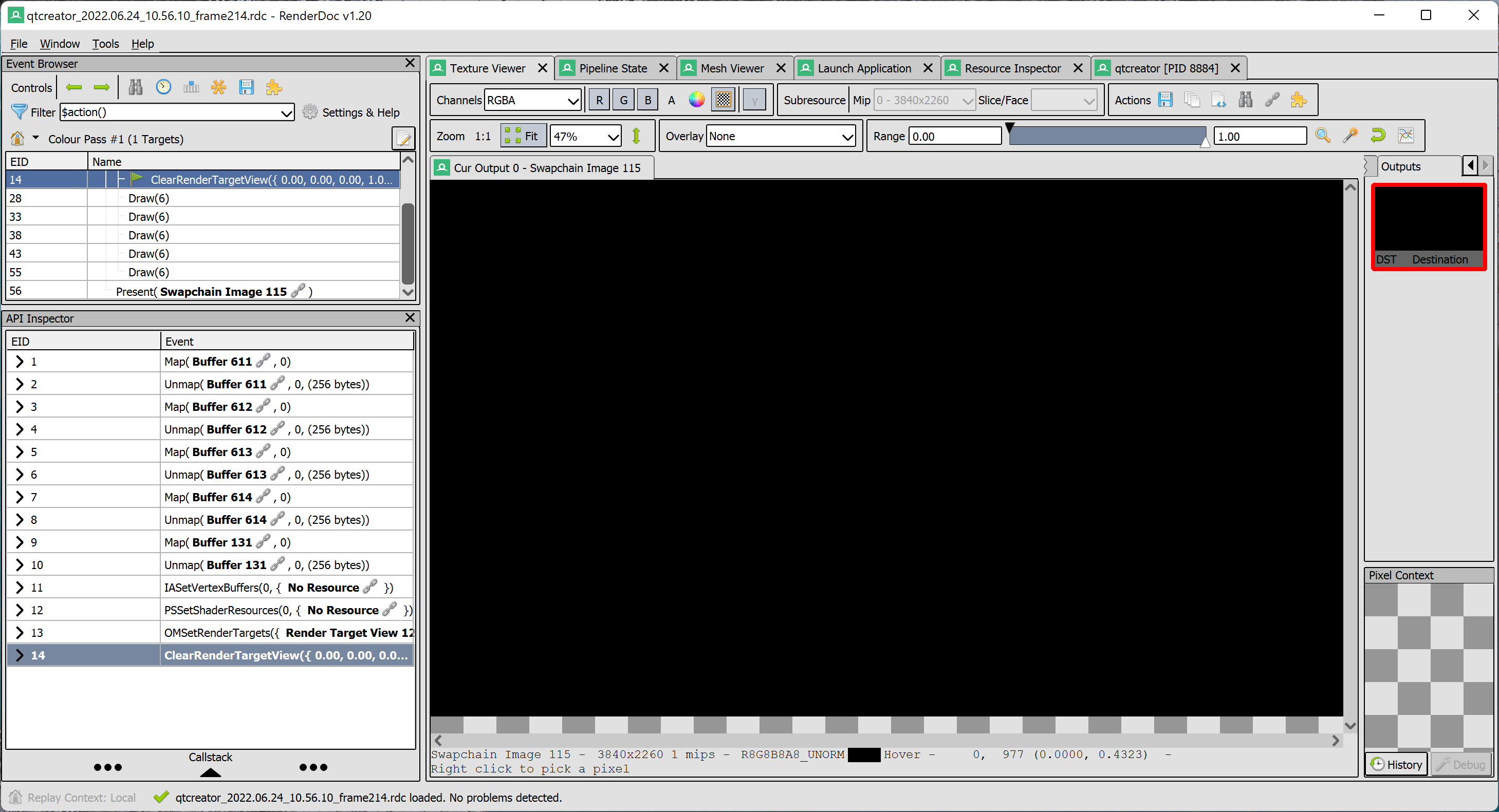
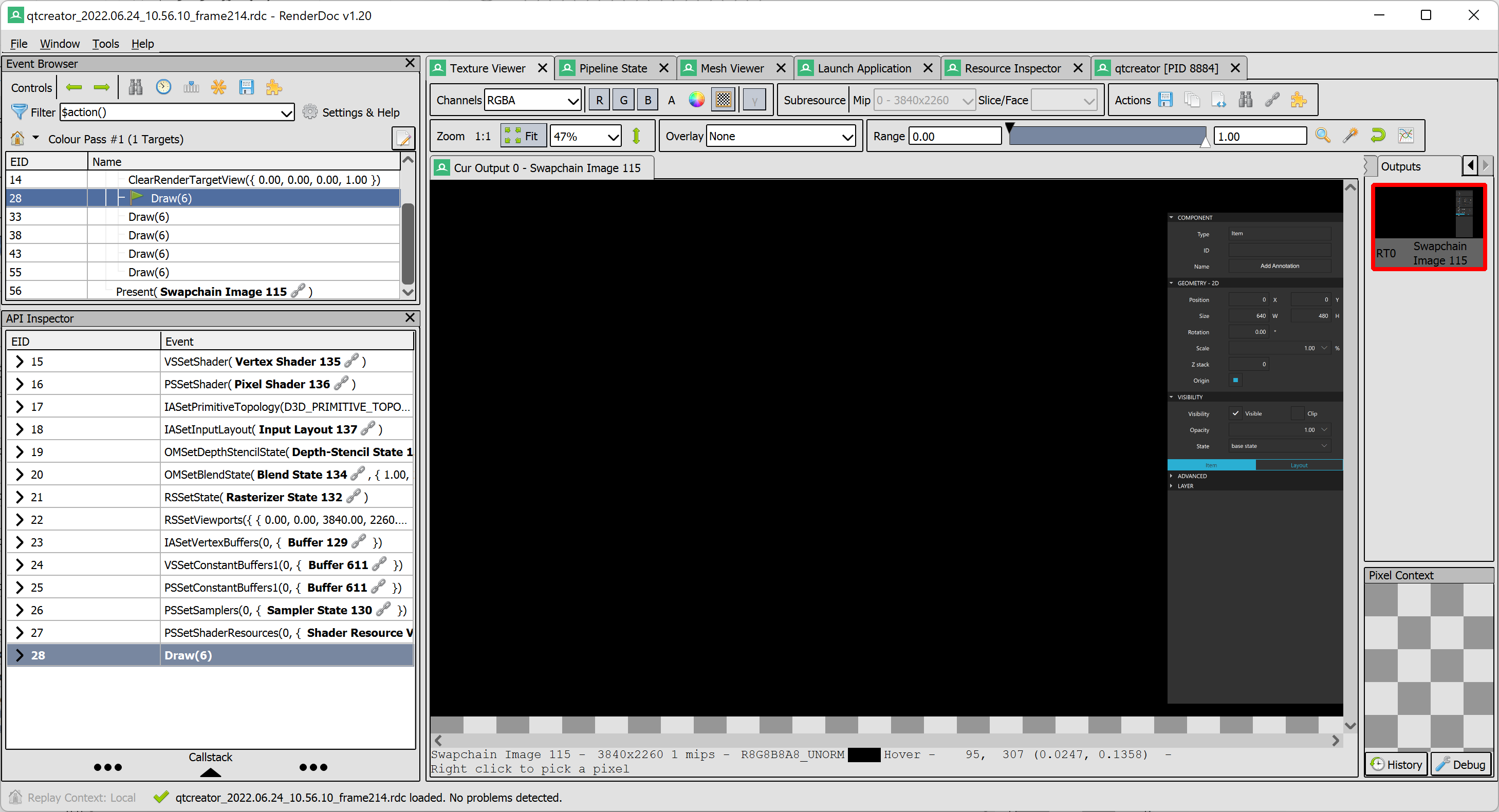
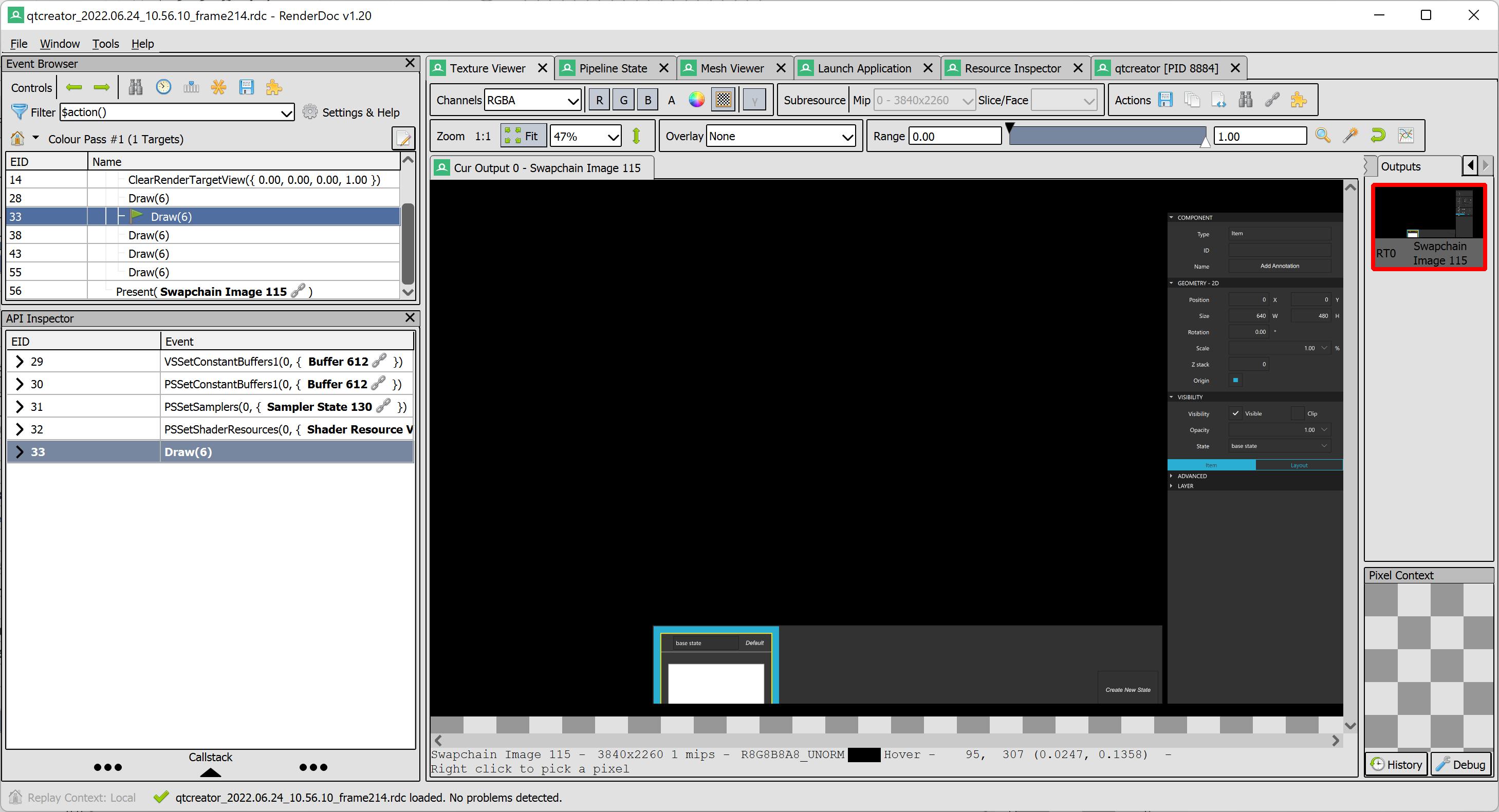
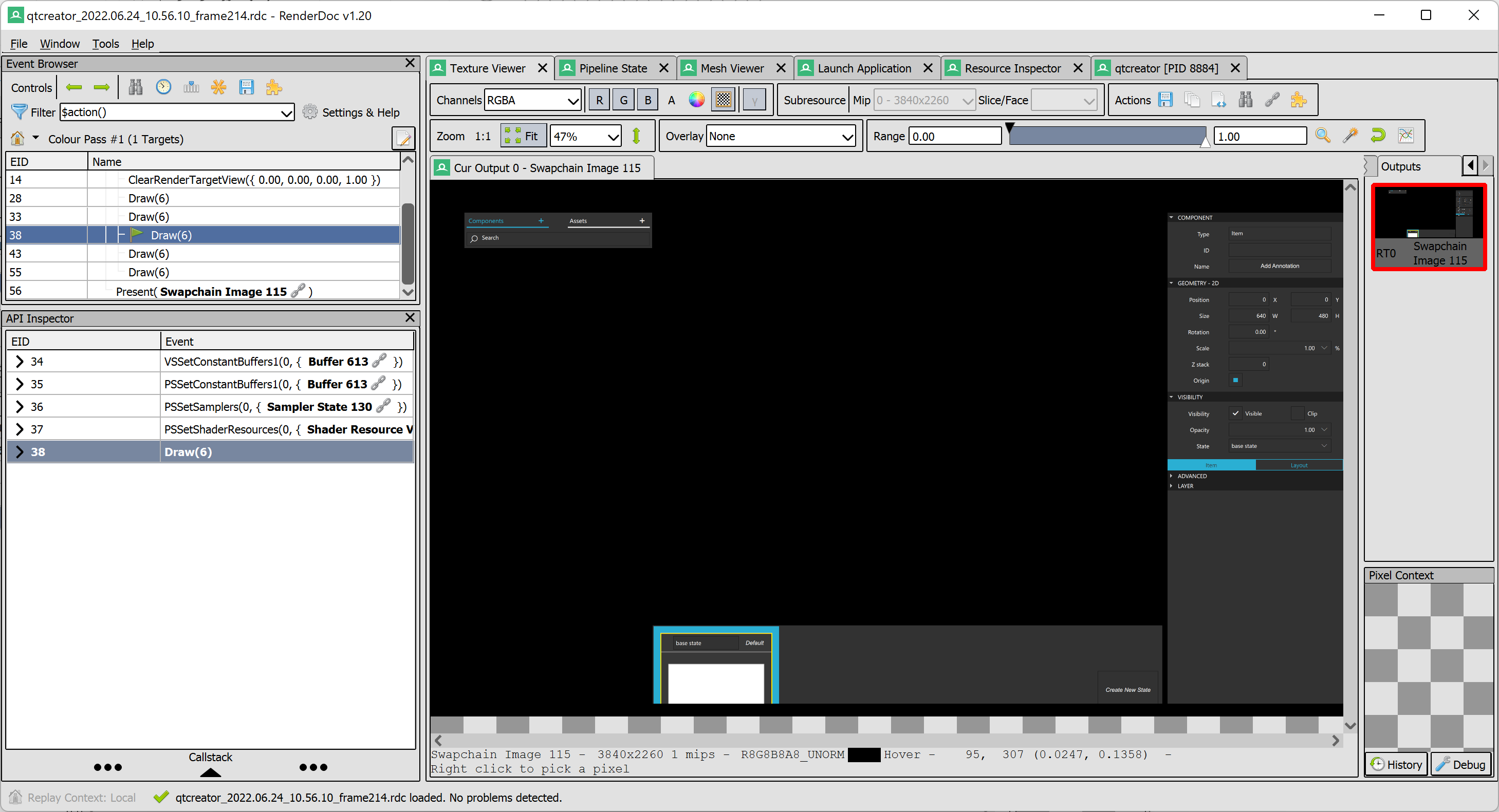
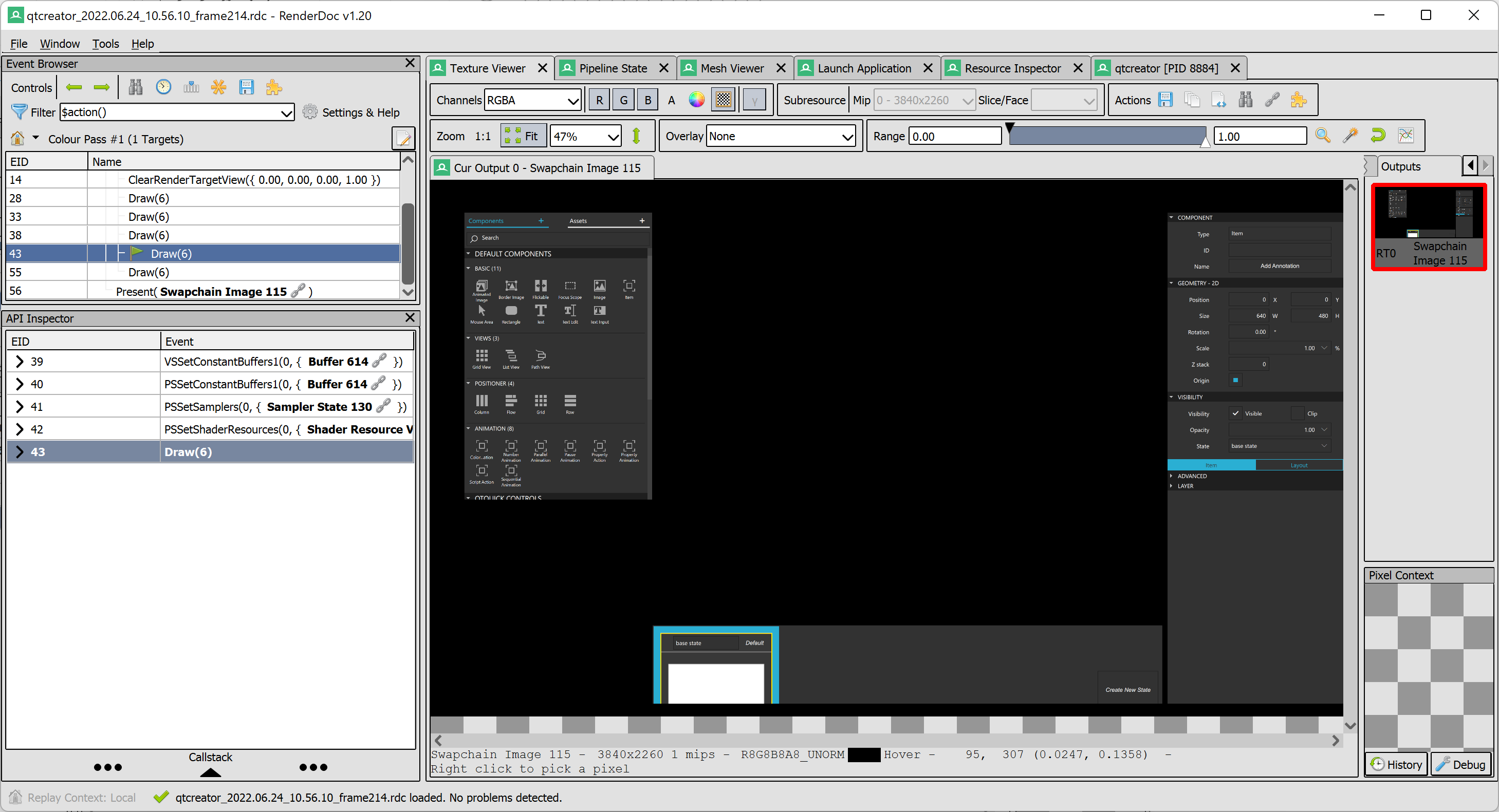
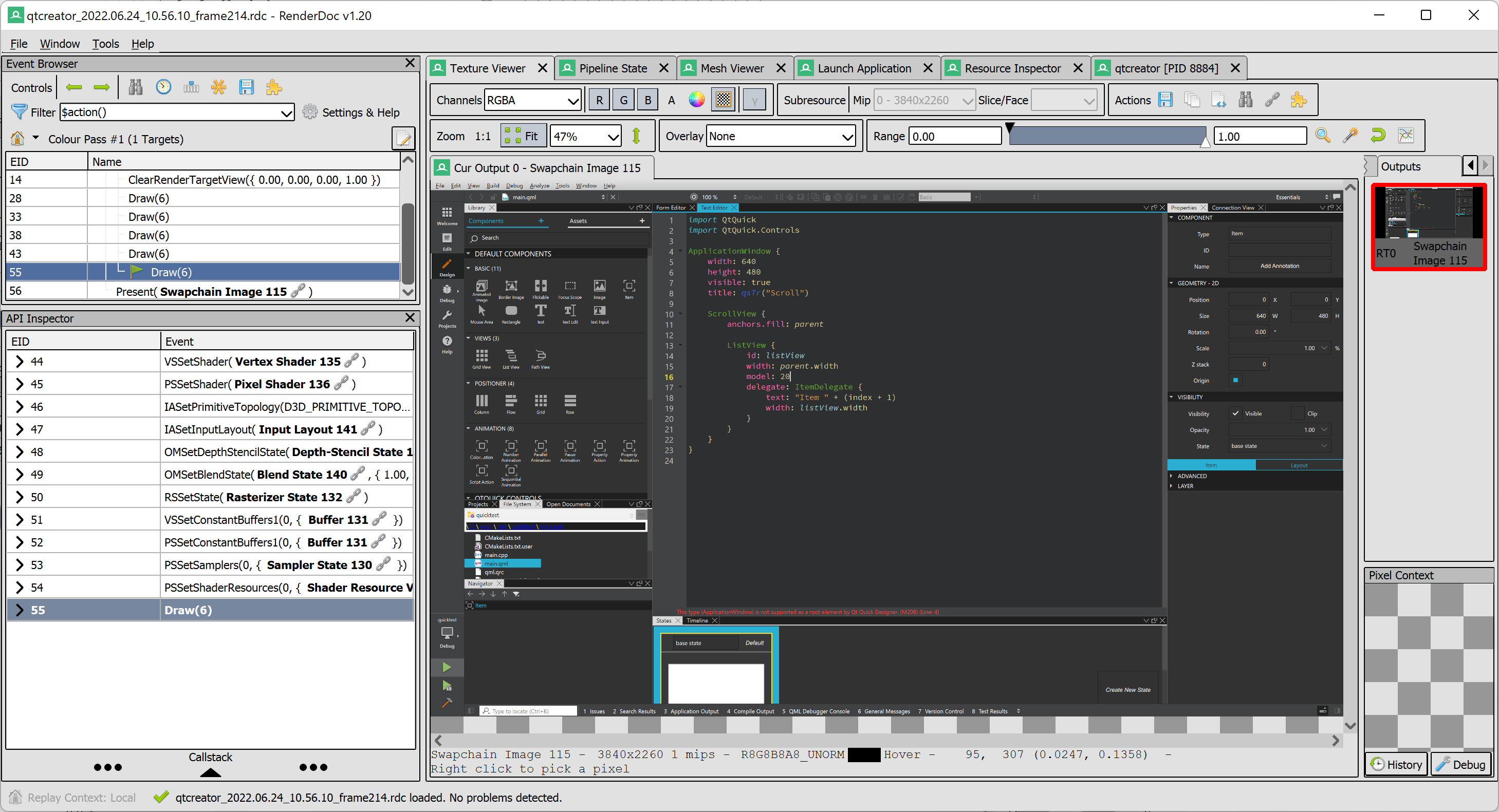
And there we have it, the expected final image in the window, no longer forced to use OpenGL. This can be particularly important on platforms where OpenGL is not desired (e.g. because it has been deprecated), meaning the 2D and 3D design views can now work with the platform's primary graphics API. In addition, not being tied to OpenGL may become useful later on, for example in case Qt Quick 3D takes on features that work best with more modern graphics APIs, because using the same underlying rendering in both the design views and at run time is certainly a better choice then.
Related Articles
Updated Qt Code Review Skills Reduce Token Costs by Up To 75%
Whether you are reviewing Qt Quick or Qt Widget code with Qt’s agentic..
Read Article
Qt Creator 21 - CMake Changes
Here are the new CMake changes in Qt Creator 21: Editor Qt Creator 21..
Read Article
Qt Creator 21 Beta2 released
We are happy to announce the release of Qt Creator 21 Beta2. Please head..
Read Article