Apr 29, 2026
When a perfectly crafted design leaves Figma and enters a development pipeline, things often get compromised. Spacing shifts, colors change, and details deviate through multiple layers of interpretation and unexpected limitations. You will see timelines lagging, design becoming unclear, and user experience losing priority.
Figma to Qt is built to ensure your GUI designs get from Figma to device.
Version 1.0 is now available for free download in the Figma Community.
Built To Work In Figma, Not To Import From It
Most design-to-code tools, including the latest AI tools, treat Figma as a source to extract from. This can be helpful in certain situations, but we know there is business value in keeping the workflow simple and streamlined, without context switching or asking designers to learn yet another tool.
This is why Figma to Qt runs inside Figma, where designers already work. Right in Figma, you can prepare, preview, and verify your GUI design. It’s a way to keep the designer as the main owner of the design process, without leaving room for the developer’s interpretation or lengthy back-and-forth to determine what will work and what will not.
What’s more, the output follows predictable, established rules for how Figma properties map to QML. Figma to Qt is a dedicated conversion tool rather than a generative one, meaning the same design produces the same code every time. What you previewed and approved is what gets exported. Your team can rely on it across projects and releases. For teams building embedded and HMI products, where knowing exactly what ships is not optional, that consistency matters.

From Beta To 1.0
We started with one question: what does it actually take for a design to reach a device intact?
The beta gave us a way to find out. Through multiple in-depth user interviews and numerous feedback sessions, designers and developers walked us through exactly where their workflows broke down, where time disappeared, and what they needed from a tool like this. Every decision in 1.0 traces back to that research.
To everyone who participated: This release is shaped by your feedback. Thank you for helping us improve. We hope you enjoy the new updates.
Design It. See It Run. Ship It.
Figma to Qt is a plugin that keeps the designer in control of the experience from the first screen to final product.
You design it. It reaches the product.
The plugin fits into how design work actually happens. The loop lives inside Figma, and here's how it works.
Design In Figma
Work as you normally would. If you want components that are Qt-native from the start, the plugin's library includes pre-annotated Qt Quick Controls: buttons, switches, checkboxes, sliders, and text fields.
Those are ready to drop onto your canvas. You can also map your existing component designs to Qt Quick Controls directly.
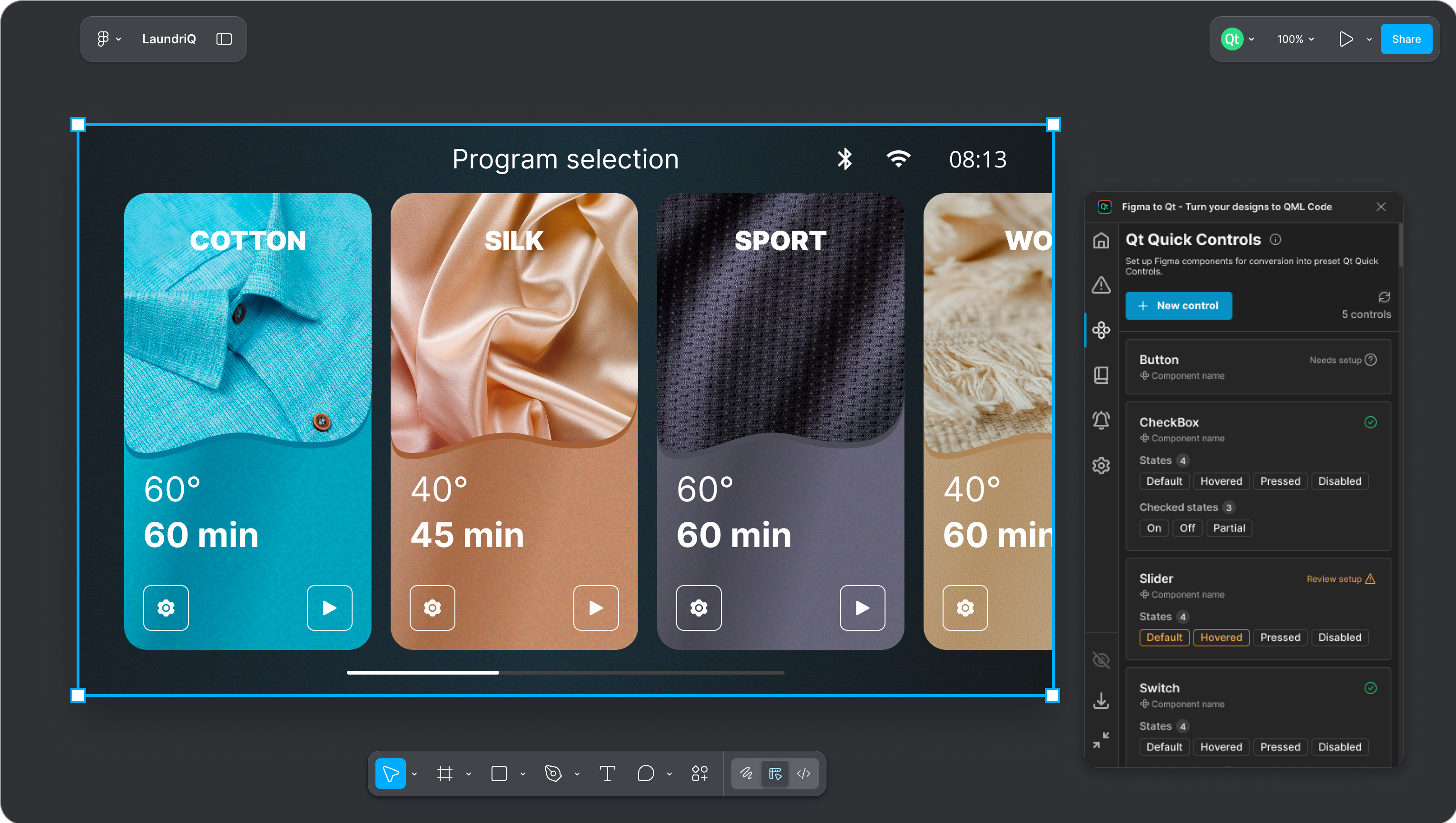
Figma to Qt matches interactive elements in your design, such as buttons and sliders, to Qt Quick Controls.
See It Running Without Leaving Figma
Open Live Preview and your design renders as a real Qt interface in the browser. You can check how it maps to code and how it holds up across different device resolutions, without leaving Figma and before a developer gets involved.
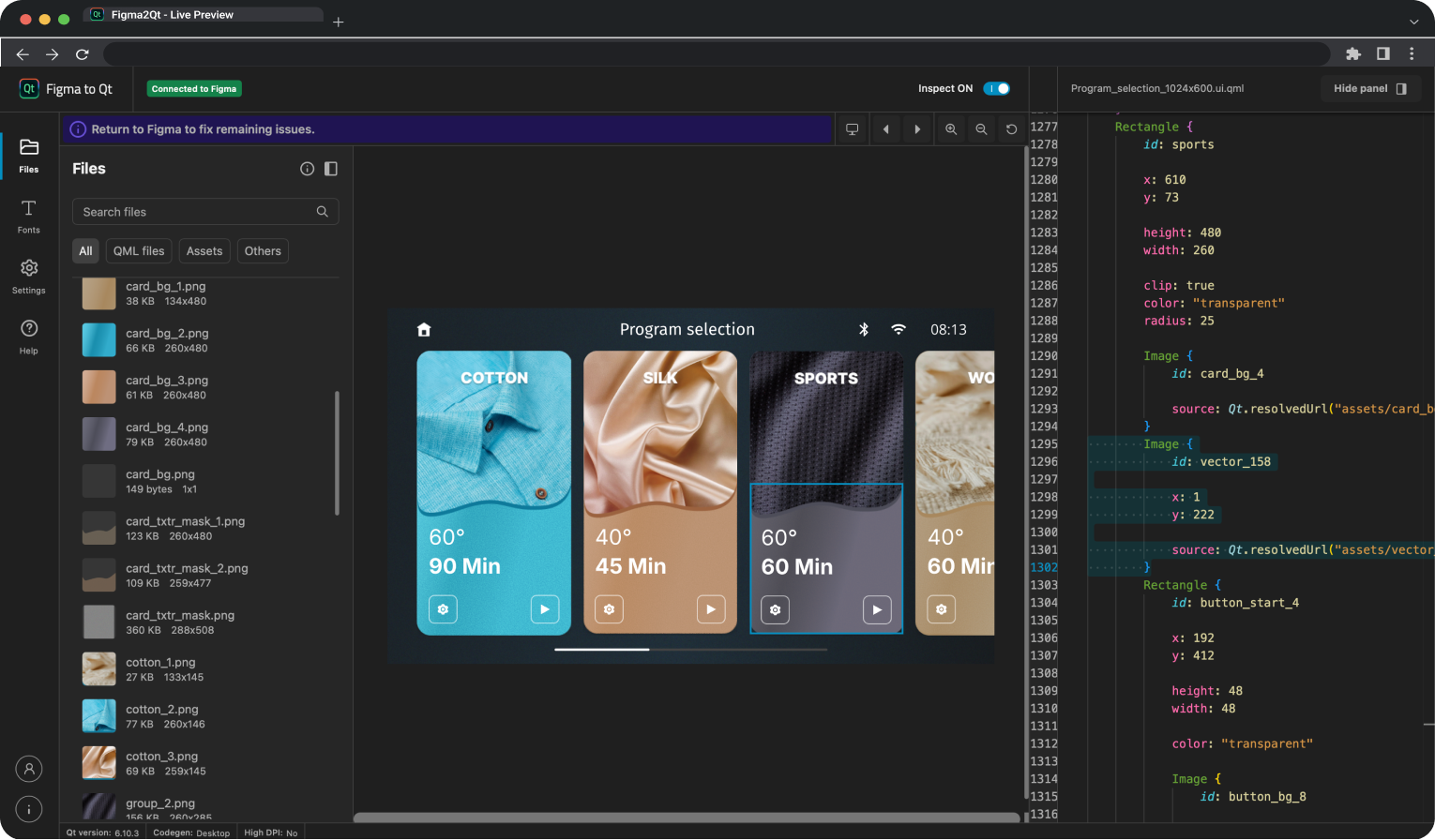
You can launch a live preview of your GUI, a real working interface rendered in your browser, right from Figma.
Catch Issues Early
The issues tab scans your design and flags anything that won't translate cleanly to QML, with an explanation and a suggested fix for each one. Problems that used to surface in code review, weeks into implementation, now surface in Figma, while you can still fix them in minutes.
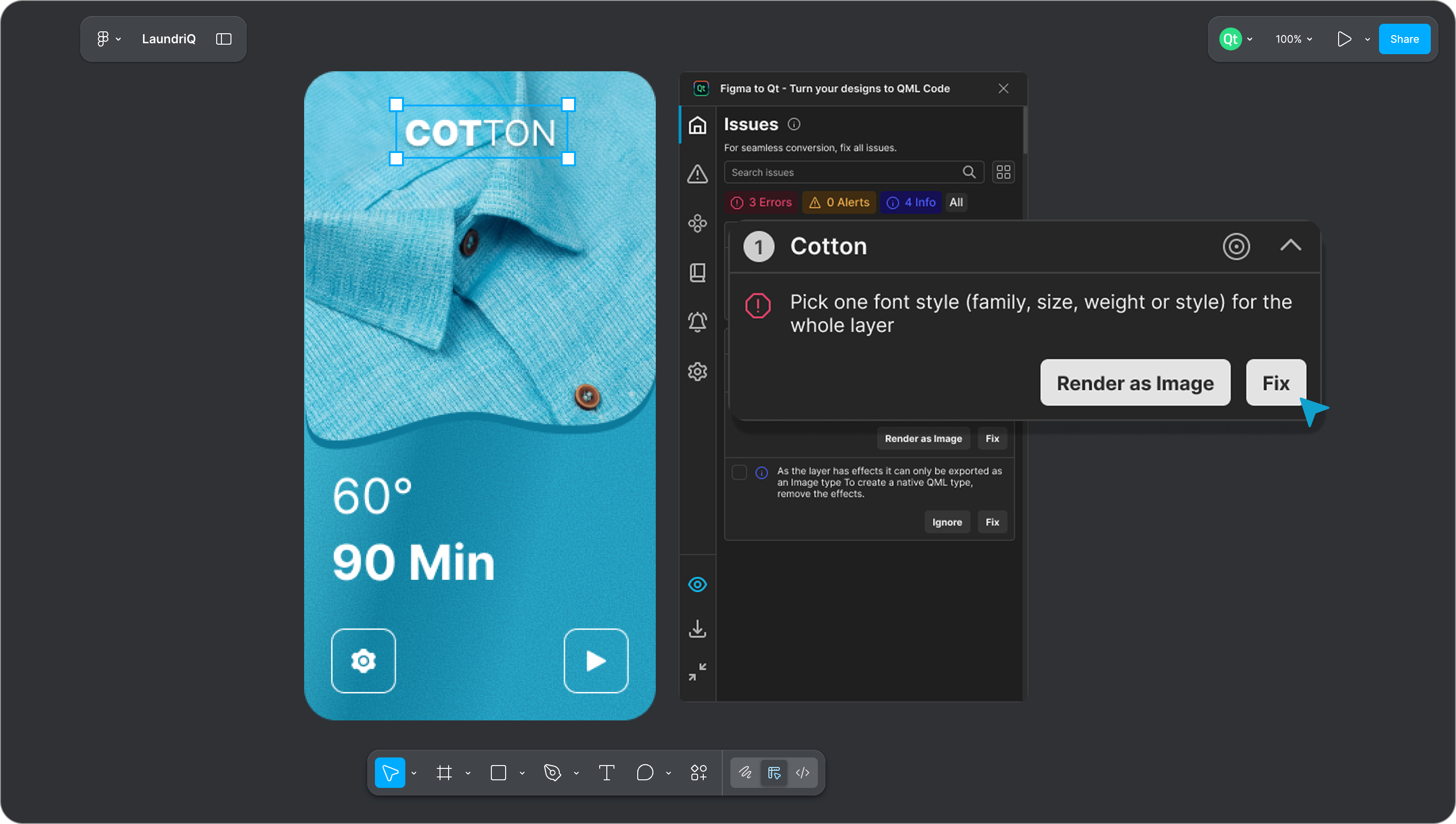
The issue tab in Figma to Qt highlights what will not render well on the device, giving you suggestions or a way to fix it with one click.
Iterate In The Same Place
Adjust in Figma, then check the preview again. The loop is fast enough that design decisions feel cheap to revisit.
Export When It's Right
When the preview matches your intent and the issues are resolved, export a complete QML project as a zip.
Developers can open it in Qt Creator, Visual Studio Code, or Qt Design Studio, and start building from a working interface, rather than piecing it together from specs.
The plugin carries your design tokens through to QML, preserves responsive behavior from auto layouts, and maps interactive components into functional, Qt-native controls. The generated code is written in a way that compiles cleanly and efficiently. A developer can take the exported file and run it through Qt Quick Compiler without touching it.
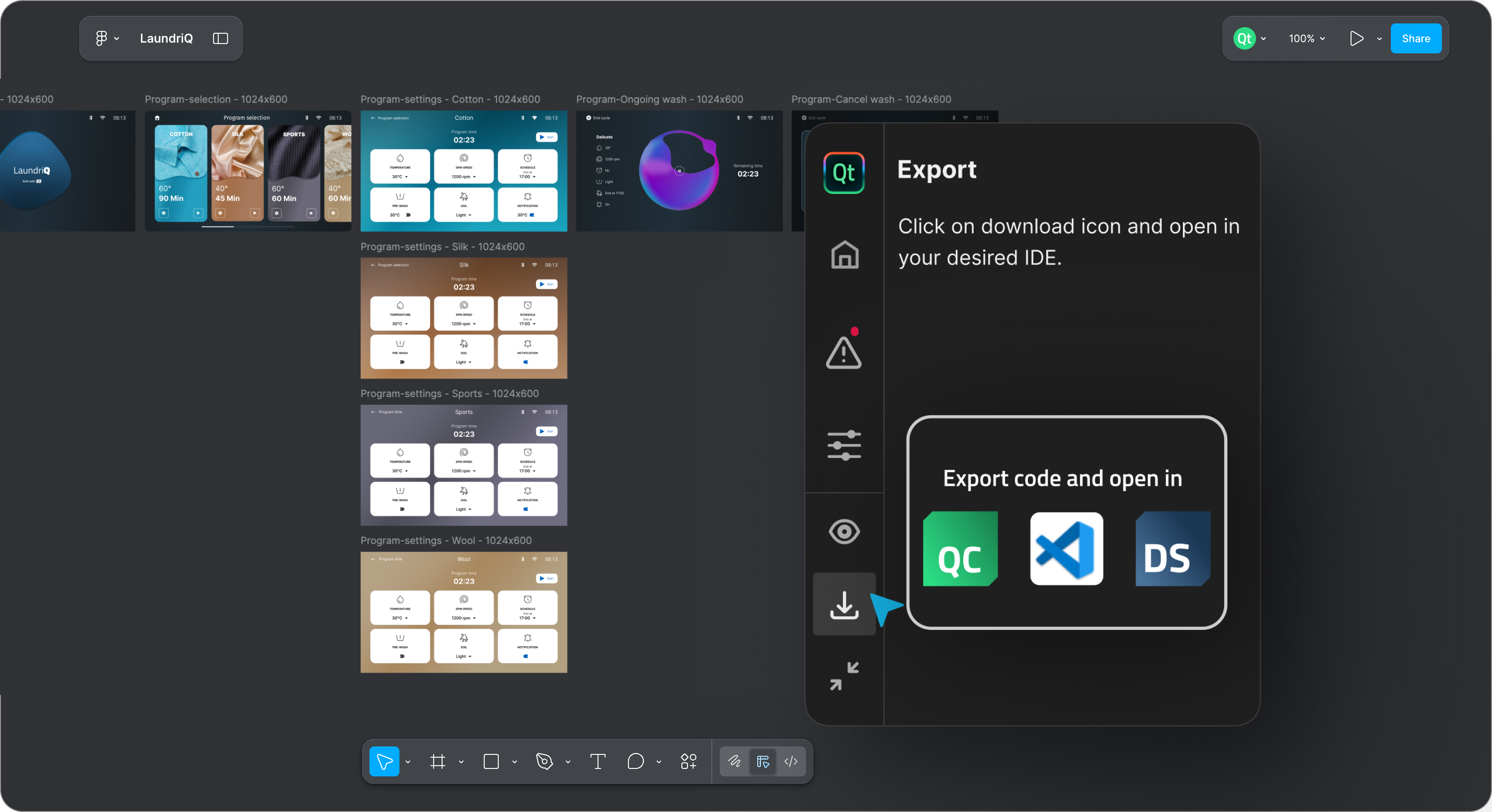 When your UI design is ready, you can export it into a .zip file that developers can open in Qt Creator, Visual Studio Code, or Qt Design Studio.
What truly makes Figma to Qt stand out is that export is no longer where you find out how the design translates. You already know, because you watched it render at every step.
By the time a developer opens the project, the major design decisions have already been validated in Qt.
New In 1.0
If you used Figma to Qt during the beta, here's what's new.
The Qt Quick Controls library now includes a Slider and Textfield, alongside the existing Button, Checkbox, and Switch. You can also map your own button designs into native controls instead of starting from the library. Check here to learn how it works.
Global shared Figma libraries are now supported. If your team maintains shared component libraries and tokens across files, the plugin reads and converts them. Check here to learn how it works.
Figma to Qt supports Figma libraries, with shared components and tokens that get translated into QML.
Figma to Qt Is The Successor To Qt Bridge for Figma
Figma to Qt is the official replacement for Qt Bridge for Figma, and the differences are meaningful.
Qt Bridge for Figma requires Qt Design Studio as an intermediate step between your design and your IDE. Figma to Qt removes that dependency entirely, generating QML directly for one straight path to your development environment of choice.
Qt Bridge for Figma only showed you a preview after importing into Qt Design Studio. Figma to Qt brings that preview into the browser in Figma while you're still iterating. You see your design running as a real Qt interface before anything leaves your hands.
And because Figma to Qt is built specifically for Figma, unlike Qt Bridge for Figma, which has siblings for Photoshop, Sketch, and Adobe XD, the generated code is cleaner and more faithful to your original design.
For new projects, use Figma to Qt.
If you have an existing project on Qt Bridge for Figma, support continues until October 2030. Reach out to the team at qt-design-tools.support@qt.io or through the Qt Account Support Center if you need support.
What’s Next
After 1.0, we'll keep expanding QML coverage to convert more Figma artifacts into native elements so designers can see and hand off their design more accurately. We're also exploring ways to create more iterative workflows between designers and developers. Our aim is to improve the communication and collaboration between design and implementation, making it faster and more efficient.
On top of that, we're closely monitoring AI developments in this area so we can confidently integrate them into the design and development workflow. Stay tuned.
Get Started For Free
Great user experiences deserve to ship that way. Figma to Qt is here to make sure they do.
Give it a try today on the Figma Community and see your designs come to life in Qt!