May 5, 2026
Comments
Instead of a painstaking row-by-row or slow flame graph reviews, the QML profiler skill for agentic development allows developers to delegate code performance profiling to AI agents.
A useful addition to Qt's AI-powered development tools, the profiling skill guides the developer through the workflow, triggers the QML profiler, crunches through the resulting raw data, presents the performance bottlenecks in a concise report, and suggests improvements.
The skill targets 2D Qt Quick applications and supports four profiling modes — rendering, logic, memory, and full. It can also analyze an existing trace file directly, without re-running the application, for example, if the performance trace has been run on the target hardware.
When is the code profiling skill triggered?
AI agents use the QML profiler skill whenever a developer suspects their Qt Quick application has a performance problem - whether they can articulate it precisely or not. Vague complaints like 'the UI feels laggy', 'frames are dropping', or 'the app stutters' are enough to kick it off, as are explicit requests to profile the app, find hotspots, or optimize bindings, signals, or rendering. Developers who have already captured a trace can also hand the skill an existing .qtd file directly for analysis, skipping the profiling step entirely.
The QML Profiler Skill: Under the Hood
Once triggered, the skill takes over a workflow that would otherwise require a developer to locate the right toolchain binary, build with the right compiler flags, run the profiler, manually work through the event list in Qt Creator or VS Code, and figure out what is actually expensive. Here is what happens at each step:
Step 1 - Locating the tools
The AI agent first detects the host OS to determine the right Qt directory structure and binary naming conventions. If nothing turns up, the agent asks the developer to supply the Qt installation path directly.
Step 2 - Enabling QML debugging
Profiling a QML application requires the binary to be compiled with the QT_QML_DEBUG preprocessor flag.
Step 3 - Running the profiler
The agent supports four profiling modes: full (the default), rendering (scene graph, animations, pixmap cache), logic (JavaScript, bindings, signal handlers, component creation), and memory. Before the application starts, the agent displays a notice telling the developer to use the app normally and close it when done — the trace is only written on exit. In environments where the agent cannot execute binaries directly such as sandboxed environments, it falls back gracefully guiding the user on how to create the trace file manually. Developers with an existing trace can skip straight to Step 4 by passing the file path directly.
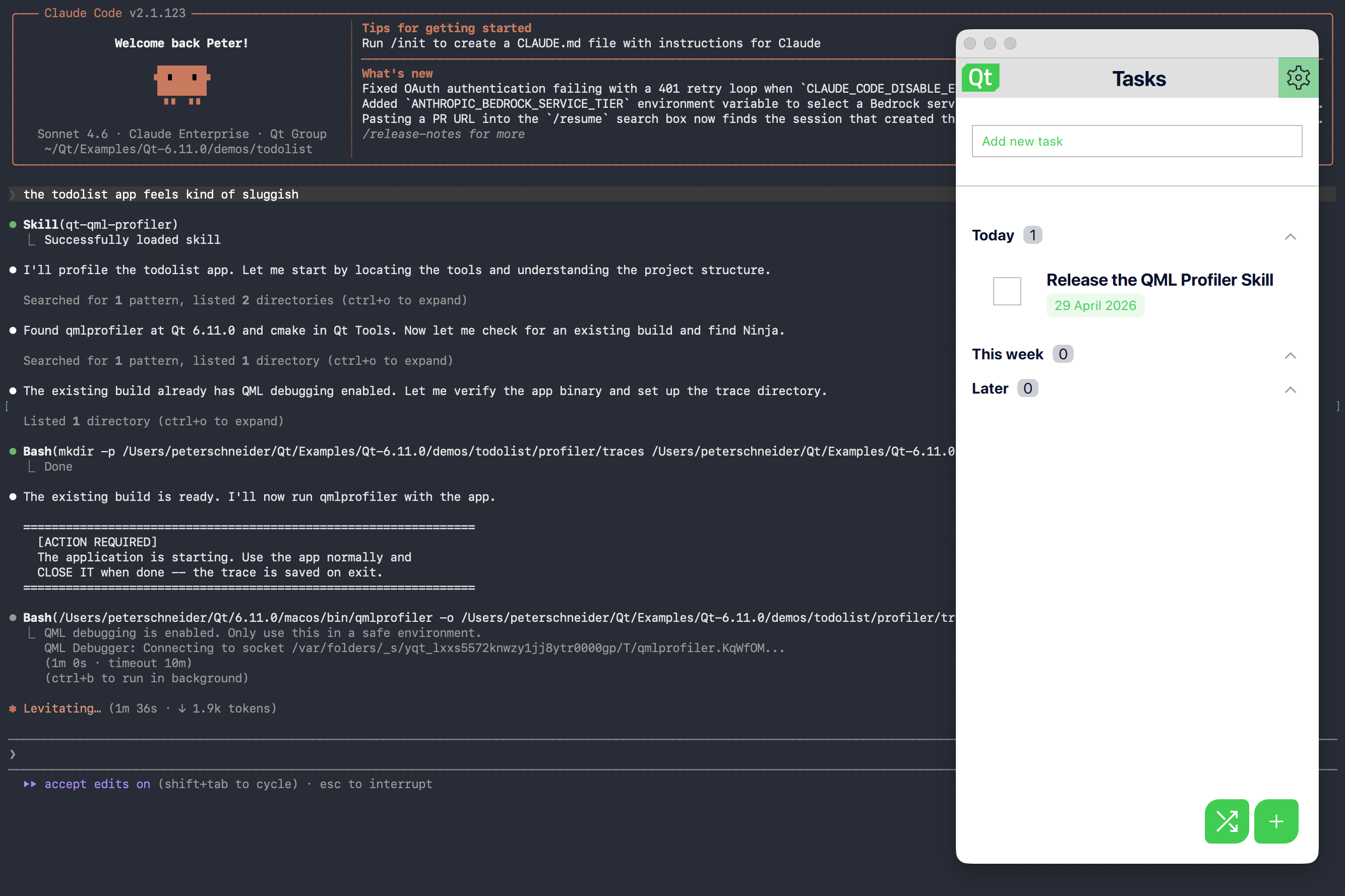
Image: Screen capture of QML profiling skill running in Claude Code CLI
Step 4 - Parsing the trace
With the trace file in hand, the agent runs a bundled Python parser against the .qtd file. The parser extracts a structured JSON summary covering event types and their total durations, per-frame CPU cost, animation frame-time percentiles, memory allocation and reclaim statistics, and the pixmap cache. This structured output is what the analysis in the next step is built on.
Step 5 - Analyzing hotspots
The agent takes the top hotspots from the parser output and maps each one back to the source file in the project. Once the source location is confirmed, the agent reads approximately 15 lines of context around the hotspot line and analyzes the code against a bundled reference catalogue of QML performance anti-patterns.
Step 6 - Writing the report
The agent writes a timestamped Markdown report to profiler/reports/. It covers an event-type summary table with per-frame CPU cost, frame-time percentiles with p50, p95, and p99, a memory breakdown by GC heap pages and JavaScript object sizes, and a pixmap cache section flagging oversized images. After a full top-30 hotspot table, the report closes with detailed analysis of the five most significant project-level bottlenecks — source excerpt, root cause, and a specific fix — followed by next steps in priority order.
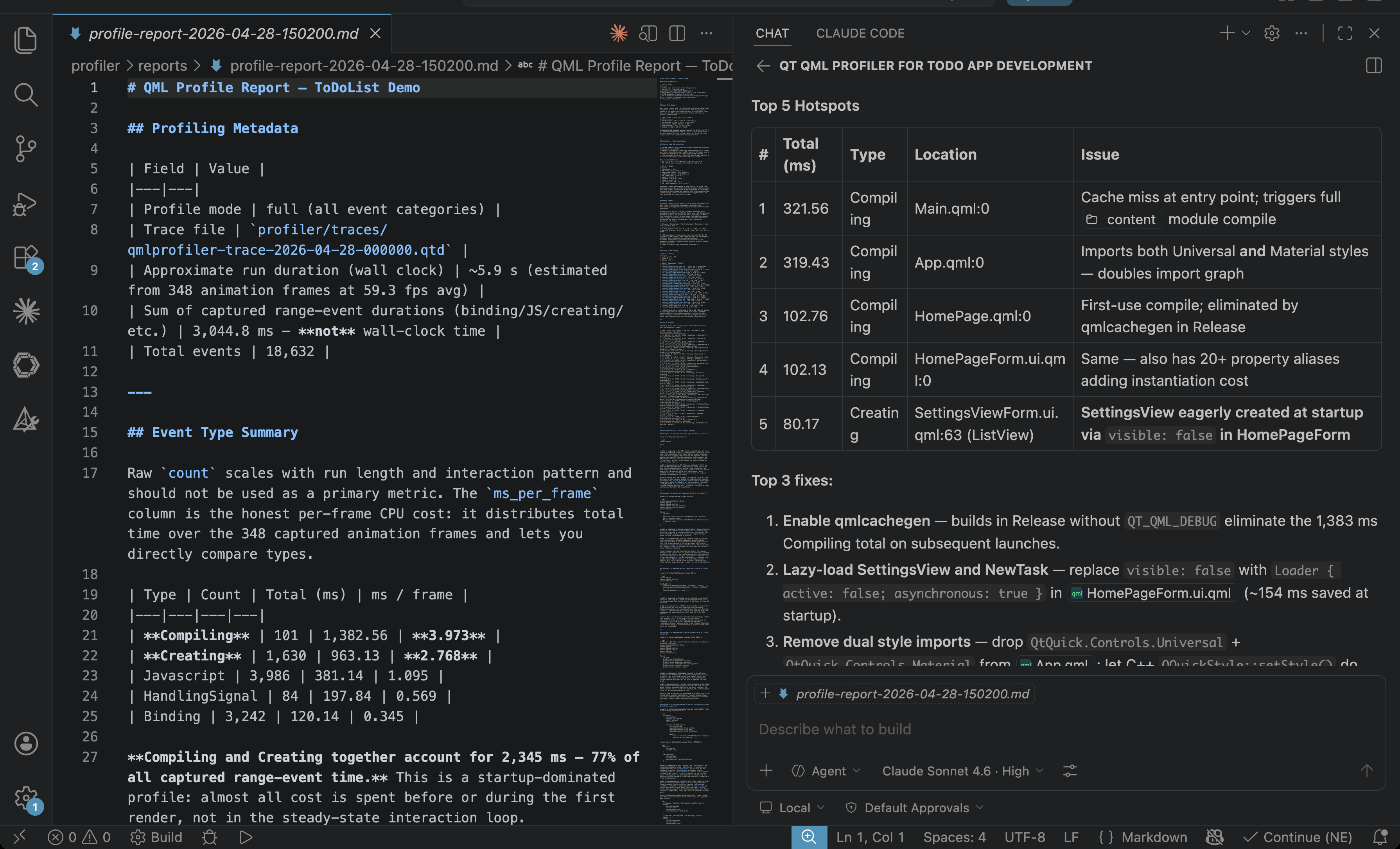
Image: Screen capture of a profiling report and the console summary displayed through GitHub Copilot in VS Code
Step 7 — Console summary
The agent displays a compact summary directly in the conversation: the event type table, the frame-time highlights, any memory and pixmap cache signals, and the top five hotspots with brief analysis.
Limitations of of the Code Profiling Skill
Like any profiling tool, the QML Profiler Skill has boundaries worth knowing before you rely on it. The skill targets 2D Qt Quick applications only — Qt Quick 3D events such as render frames, sync passes, and cull operations are not captured or analyzed.
The skill makes optimization suggestions based on the pre-training knowledge of the LLM in use and a generic anti-pattern reference document. The skill does not make hardware-specific code optimization suggestions at the moment.
On the analysis side, the skill identifies the top hotspots by total event duration and maps them to source code, but it does not analyze CPU usage outside of QML event types, GPU-side rendering costs, network or I/O latency, or native C++ backend performance. Those dimensions require separate tooling.
Finally, like any runtime profiler, the results are only as representative as the session that produced them. If the developer exercises only a narrow set of UI interactions during the profiling run, expensive code paths triggered by other workflows will not appear in the trace. Running multiple focused profiling sessions — one for startup, one for a typical interaction loop, one for a stress scenario — gives a more complete picture than a single general-purpose run.
The length and detail level of the final report depend on the LLM powering the AI agent. For example, GPT5.4 in medium thinking effort will create a compact report while Claude Sonnet 4.6 in high effort mode will explain the details of each identified hotspot.
Dependencies
The QML Profiler skill requires a Qt 6 installation with qmlprofiler available — the tool ships as part of the standard Qt installation and is found under bin/ in the Qt compiler directory. For the build step, CMake must be available on the system PATH. Python 3 is required to run the bundled trace parser; on most Linux and macOS systems it is present by default, while Windows developers may need to install it separately. No additional Python packages are needed beyond the standard library.
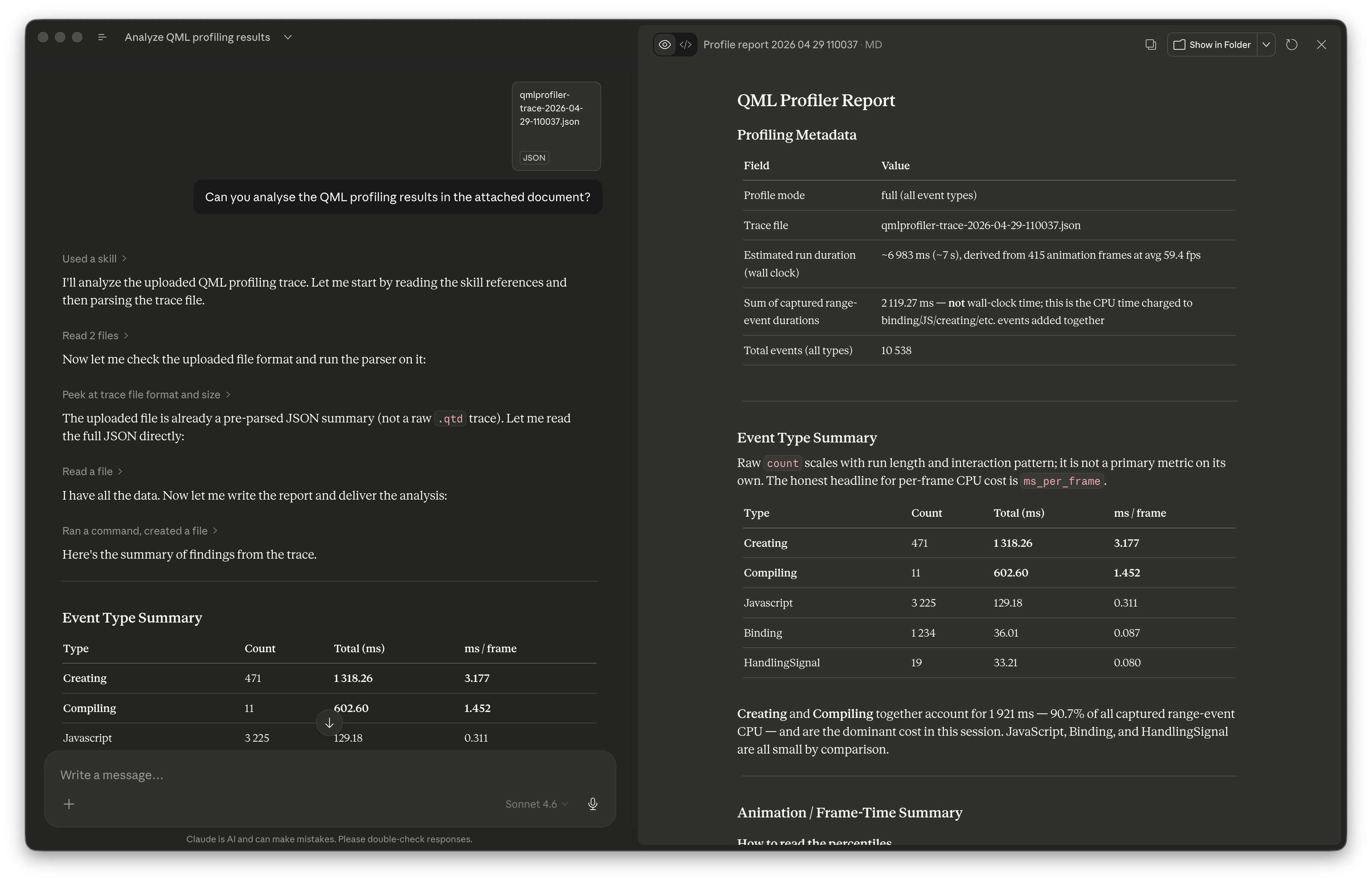
Image: Screen capture of a profiling report from previous profile trace file in Claude Desktop
Tested with
The skill has been tested with Claude Code CLI, Claude Desktop, and GitHub Copilot in VS Code. Claude Sonnet 4.6, GPT 5.4, and Gemini 3.1 Pro deliver good results.
Getting the skill
You can get your Qt agent skills from our GitHub repository: https://github.com/TheQtCompanyRnD/agent-skills
Alternatively, you can install the official QML profiling skill directly from Claude’s marketplace as part of our plugin (search for "qt-development"). If you have installed the qt-development plugin to GitHub Copilot previously, you need to trigger the pull of the git repository clone manually.
Related Articles
Canvas2D: New QML canvas element using Qt Canvas Painter
In the earlier blog posts about Qt Canvas Painter we have looked at what..
Read Article
A Cross-Platform C# UI Framework via Qt’s Bridging Technology
Every C# UI framework comes with a familiar pattern: Windows-first, Linux..
Read Article
QML and C# without C++: Qt Bridge for C# 0.4.0 Beta Released
As part of the on-going development of Qt Bridges, and beyond the two Beta..
Read Article