Mar 25, 2026
Comments
Microsoft introduced the Windows Store with Windows 8 as central place to download and update software. To place software into the Microsoft Store, developers must sign it digitally. Microsoft checks the Software before it is published into the Microsoft Store. The AppxManifest.xml describes the packaging information for the Microsoft Store. The makeappx tool creates the appx installer, which is signed with the signtool from the Windows SDK. With Qt 6.11, windeployqt got extra command line arguments to create an AppxManifest.xml, namely those are the --appx and --appx-certificate arguments.
Deploying a Sample Application
In this blog post we will create a self-signed appx installer from the Affine Transformations example, which can be found at <QtInstallDir>\Examples\Qt-6.10.0\widgets\painting\affine. This tutorial is divided into the steps of creating a self-signed certificate, creating the expected deployment folder structure, generating the AppxManifest.xml file with windeployqt, and finally the creation of a self-signed appx installer. This tutorial requires the Windows SDK to be installed.
Creating a self-signed certificate
It is useful to create a self-signed certificate on the development machine for testing and debugging purposes. This is accomplished by the makecert and pvk2pfx tools from the Windows SDK. We create our self-signed certificate with
makecert -r -pe -n "CN=example-company.org" -a sha256 -e 01/01/2030 -sky exchange -sv affine_TemporaryKey.pvk affine_TemporaryKey.cer
followed by creating a Private Information Exchange (.pfx) file with
pvk2pfx -pvk affine_TemporaryKey.pvk -spc affine_TemporaryKey.cer -pfx affine_TemporaryKey.pfx
. Finally, the self-signed certificate has to be added to the TrustedPeople group with
certutil -addStore TrustedPeople affine_TemporaryKey.cer
so that packages signed with it can be installed.
Creating a deployment folder structure
The deployment project for this tutorial is organised into three directories.
-
files: contains files which will be bundled into the appx
-
keys: contains the self signed certificates
-
package: the appx will be created inside this folder
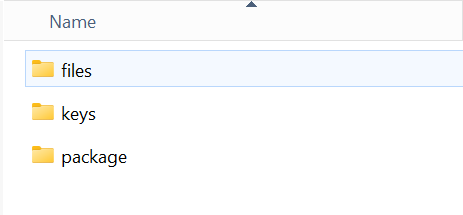
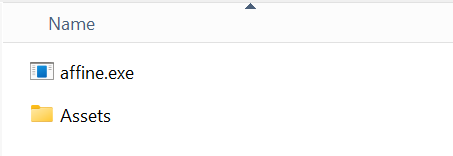
The files directory contains the executable to be deployed and an Asset folder that contains additional files for the Appx Installer package such as app description and app logos. The content of the files folder will look as following after copying the affine.exe inside the folder.
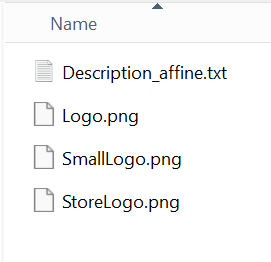
Inside the Assets folder there is a Description_affine.txt for the installer description of affine.exe, a Logo.png and SmallLogo.png for the application logos and a StoreLogo.png for the store logo. All those files are needed for the creation of the AppxManifest.xml by windeployqt. The files inside the Assets folder are shown below.
Creating the Appx
To create the initial AppxManifest.xml with windeployqt, execute:
windeployqt.exe --appx --appx-certificate C:\deploymentTest\keys\affine_TemporaryKey.cer C:\deploymentTest\files\
Where --appx tells windeployqt to generate an appx and --appx-certificate tells windeployqt which certificate to use to sign the final Appx package. The final path points to the folder containing the files to package into the .appx file. To create the unsigned appx file, execute:
makeappx pack /d C:\deploymentTest\files\ /p C:\deploymentTest\package\package.appx
This will parse the previously created AppxManifest.xml and include all files inside the folder C:\deploymentTest\files\. Finally, the .appx file needs to be signed with our self-signed certificate. This is done by executing
signtool.exe sign /a /v /fd SHA256 /f C:\deploymentTest\keys\affine_TemporaryKey.pfx C:\deploymentTest\package\package.appx
For deployment into the real store, the self-signed certificate has to be replaced with a valid code-signing certificate.