Dec 5, 2025
Comments
Translating large Qt applications can be challenging, especially when using ID-based translations.
While text-based translations are organized by context (the class or namespace where the translation
occurs), ID-based translations have historically lacked this organizational structure. In large projects
with hundreds or thousands of ID-based translation strings, translators were left navigating a single,
overwhelming list under "<unnamed context>".
We're excited to announce a new feature in Qt 6.11 that addresses this challenge: labels for
ID-based translations. Labels provide a simple yet powerful way to organize ID-based translation
entries into logical groups, to make the translator's workflow more efficient.
The Challenge: Organizing ID-Based Translations
Qt offers two approaches to internationalization (i18n):
Text-based translation uses the combination of source text and context as the key for looking up translations. The context identifies where the translation occurs in your code structure. In C++, when you call tr("Open File") within a class, the context is the name of the enclosing class and its namespaces. In QML, when you call qsTr("Open File"), the context is typically the QML file name, or a customized context name if you've used the Translator pragma notation to define it.
The translation system uses both the source text ("Open File") and its context together as the lookup key. These translations are automatically organized and grouped by their context in Qt Linguist, making it easy for translators to understand which part of the application each string belongs to.
ID-based translation uses unique identifiers instead of source text. When you call qtTrId("msg.open") in C++ or qsTrId("msg.open") in QML, the translation system uses "msg.open" as the lookup key. This approach offers several advantages:
- IDs remain constant even when source text changes
- Shorter IDs reduce file sizes
- The same ID and its translation can be re-used in different classes and namespaces
- Better suited for late-stage internationalization
- Separates what is displayed in the UI from the developers' code, to allow UI text being managed independently
However, ID-based translations come without inherent context. When a translator opens a TS file containing ID-based translations in Qt Linguist, all entries appear in a single group, which makes it difficult to navigate and understand the organization of the translation work.
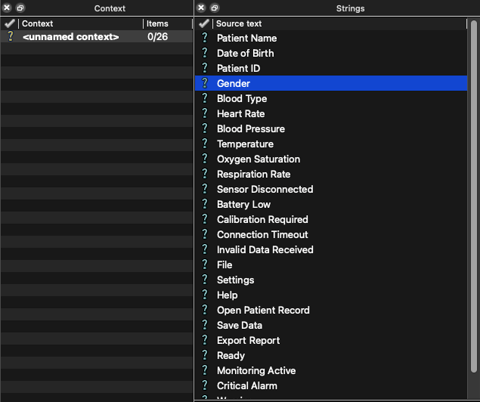 Before labels: Qt Linguist with all ID-based translations under "<unnamed context>"
The Solution: Introducing Labels
Labels provide a way to categorize ID-based translations into meaningful groups without affecting the runtime behavior of your application. Just as text-based translations are grouped by context, ID-based translations can now be grouped by labels. Still, the translation lookup is performed using only the ID, as before. Labels are purely for organizational purposes, to help translators navigate and understand the structure of translation work.
How Labels Work
Adding a label to an ID-based translation is straightforward. Simply add a //@ LabelName comment before your translation call.
In C++:
//% "Open file"
//@ FileOperations
qtTrId("msg.open");

//% "Save file"
//@ FileOperations
qtTrId("msg.save");

//% "Connection timeout"
//@ NetworkErrors
qtTrId("err.timeout");
In QML:
//% "Open file"
//@ FileOperations
qsTrId("msg.open")

//% "Save file"
//@ FileOperations
qsTrId("msg.save")

//% "Connection timeout"
//@ NetworkErrors
qsTrId("err.timeout")
When lupdate extracts these translations, it associates each ID-based entry with its label. In Qt Linguist, entries with the same label are grouped together (similar to text-based translations grouped by contexts), making it much easier for translators to navigate through related strings.
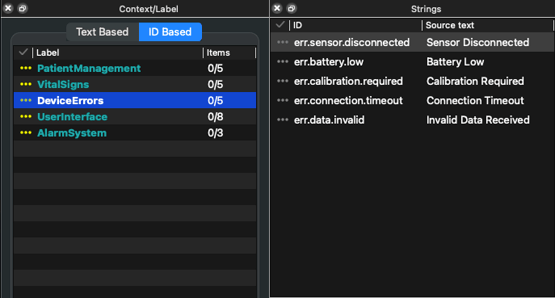 After labels: Qt Linguist with ID-based translations organized by labels
Labels Across Different File Types
Labels work consistently across all Qt file types that support ID-based translations:
C++ Source Files: Use //@ LabelName comments before qtTrId() calls
QML Files: Use //@ LabelName comments before qsTrId() calls
Qt Widgets Designer UI Files: Set the label in the form settings, and all ID-based translations in that form inherit the label.
Note that Qt in Python doesn't support ID-based translations, so there's no equivalent for Python files.
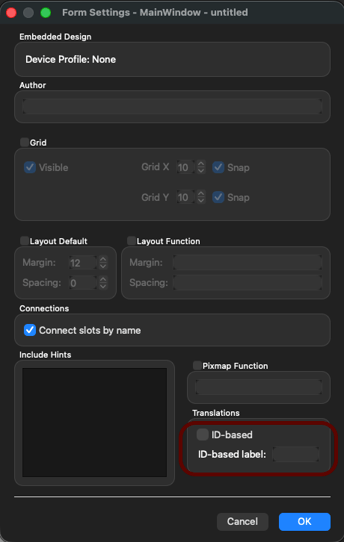
Qt Widgets Designer form settings showing the label field
Automatic Label Generation
While manually specifying label names works well for many projects, maintaining consistent label names across a large codebase can become tedious. You can use automatic label generation with placeholders that derive labels from your code structure.
Available Placeholders:
<context>- Uses the full context path (namespace::class in C++, component name in QML)<class>- Uses only the class name without namespace prefix (C++ only)<file>- Uses the source filename
For example, in C++:
namespace MyApp {
class FileHandler : QObject {
    Q_OBJECT
    void open() {
        //% "Open file"
        //@ <context>
        qtTrId("msg.open");  // Label becomes: MyApp::FileHandler

        //% "Save file"
        //@ <class>
        qtTrId("msg.save");  // Label becomes: FileHandler

        //% "Export"
        //@ <file>
        qtTrId("msg.export");  // Label becomes: filehandler.cpp
    }
};
}
Or in QML:
// main.qml
Item {
    id: mainView
    Component.onCompleted: {
        //% "Loading"
        //@ <context>
        qsTrId("msg.loading")  // Label becomes: mainView

        //% "Ready"
        //@ <file>
        qsTrId("msg.ready")  // Label becomes: main.qml
    }
}
Combining Placeholders:
Placeholders can be combined with custom text to create more descriptive labels:
//% "Open file"
//@ <file>:<class>
qtTrId("msg.open"); // Label: filehandler.cpp:FileHandler
//% "Network error"
//@ module_<context>
qtTrId("err.network"); // Label: module_MyApp::ErrorHandler
//% "Status update"
//@ <file>_<class>-state
qtTrId("status.update"); // Label: statusbar.cpp_StatusBar-state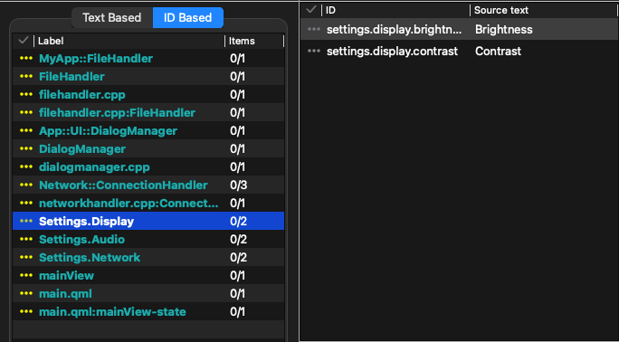 Linguist showing ID-Based translations with auto labels
Auto-labels are particularly useful in large projects where manual label management becomes impractical. They ensure consistent grouping based on code structure and automatically provide context hints to translators about where each translation is used, without requiring developers to maintain label names manually.
Important Notes:
- Auto-labels only work with ID-based translations (
qtTrId,qsTrId) - Using
<class>in QML or outside any C++ class will generate a warning and use `<unnamed>` instead
Enhanced Qt Linguist Interface
To support the new label feature, Qt Linguist has been enhanced with a more intuitive interface for working with mixed translation types. The context dock widget now features tabs that let translators switch between:
- Text-Based translations: Organized by context (class/namespace)
- ID-Based translations: Organized by labels
This separation makes it easier to focus on one translation approach at a time.
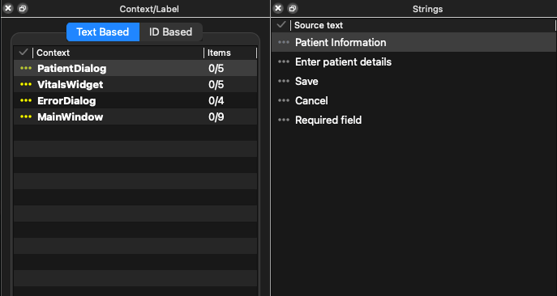
The new tabbed interface in Qt Linguist with "Text Based" and "ID Based" tabs
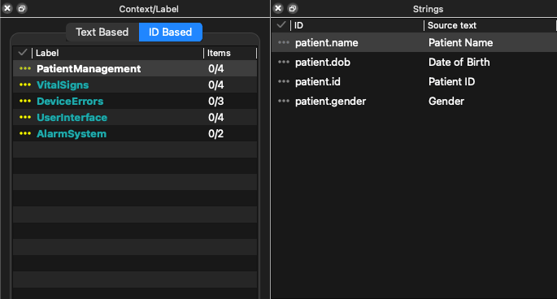
The new tabbed interface in Qt Linguist with "Text Based" and "ID Based" tabs
When working with ID-based translations, the column headers adapt to show relevant information:
- Label: The grouping category for the translation
- ID: The translation identifier (e.g., "msg.open")
- Source text: The engineering English text from
//% "text"comments
Entries without a label appear under "<unnamed label>".
Important Considerations
Labels Are for Organization Only
Labels are purely organizational. They exist to help translators navigate and understand the structure of translation work. They have no effect on runtime behavior:
- IDs remain globally unique across all labels
- You still call
qtTrId("msg.open")without referencing the label - The translation system looks up translations by ID alone
- Changing a label doesn't affect how translations are loaded
This ensures that labels can be added, modified, or removed without any impact on your application's functionality.
Label Validation
lupdate performs validation to help you use labels correctly:
Invalid: Labels on text-based translations
//@ MyLabel        // Warning: labels cannot be used with text-based translation
tr("Open File");
Warning: Conflicting labels for the same ID
//% "Open file"
//@ FileOperations
qtTrId("msg.open");

// Later in the code...
//% "Open file"
//@ UserInterface   // Warning: contradicting labels for id "msg.open"
qtTrId("msg.open");
When the same ID appears with different labels, lupdate will emit a warning, as this likely indicates an organizational inconsistency.
It's worth noting that it suffices to define a label for a specific ID once in the codebase. Though you can still repeat the labels in multiple places for code clarity if you prefer. The label will be associated with the ID in the translation file regardless of where it was first defined.
Practical Example: Organizing a Large Application
Let's see how labels improve the translation workflow for a real-world application. Consider a medical device interface with hundreds of ID-based translations.
Before labels, all 500+ translations appeared in a single list under "<unnamed context>". Translators had difficulty understanding which strings belonged to which features, leading to context confusion and slower translation.
With labels, the translations are organized into logical groups. A useful pattern is to define all ID-based translations once in a dedicated location (e.g., a header file) using QT_TRID_NOOP, along with their source texts and labels:
// translations.h - Central definition of all ID-based translations

// Patient Management
//% "Patient Name"
//@ PatientManagement
QT_TRID_NOOP("patient.name");

//% "Date of Birth"
//@ PatientManagement
QT_TRID_NOOP("patient.dob");

//% "Patient ID"
//@ PatientManagement
QT_TRID_NOOP("patient.id");

// Vital Signs Monitoring
//% "Heart Rate"
//@ VitalSigns
QT_TRID_NOOP("vitals.heartrate");

//% "Blood Pressure"
//@ VitalSigns
QT_TRID_NOOP("vitals.bloodpressure");

//% "Temperature"
//@ VitalSigns
QT_TRID_NOOP("vitals.temperature");

// Device Errors
//% "Sensor Disconnected"
//@ DeviceErrors
QT_TRID_NOOP("err.sensor.disconnected");

//% "Battery Low"
//@ DeviceErrors
QT_TRID_NOOP("err.battery.low");

//% "Calibration Required"
//@ DeviceErrors
QT_TRID_NOOP("err.calibration.required");
Once defined centrally, you can use these IDs throughout your codebase without repeating the source texts or labels:
// patientview.cpp
void PatientView::displayPatient(const Patient &patient)
{
    nameLabel->setText(qtTrId("patient.name"));
    dobLabel->setText(qtTrId("patient.dob"));
    idLabel->setText(qtTrId("patient.id"));
}

// vitalsmonitor.cpp
void VitalsMonitor::updateDisplay()
{
    heartRateLabel->setText(qtTrId("vitals.heartrate"));
    bpLabel->setText(qtTrId("vitals.bloodpressure"));
    tempLabel->setText(qtTrId("vitals.temperature"));
}

// errorhandler.cpp
void ErrorHandler::showError(ErrorType type)
{
    QString message;
    if (type == SensorError)
        message = qtTrId("err.sensor.disconnected");
    else if (type == BatteryError)
        message = qtTrId("err.battery.low");
    // ...
}
Now translators can work through logical sections, by first translating all patient management strings together, then all vital signs strings, and so on. The grouped organization provides context and makes the translation work more intuitive and efficient. This approach also maintains clean, readable code and keeps all translation definitions in one maintainable location.
Best Practices for Using Labels
Based on our implementation and testing, here are some recommendations for effective label usage:
- Use descriptive names that reflect functional areas or features (e.g., FileOperations, NetworkErrors, UserAuthentication)
- Organize around features to help translators understand the context and purpose of each string
- Use hierarchical naming for large projects (e.g., Settings.Display, Settings.Audio, Settings.Network)
- Maintain consistency in naming conventions throughout your project
- Document your scheme with guidelines for your team, especially for hierarchical or domain-specific naming
Adoption and Compatibility
Labels will be available starting in Qt 6.11. To use them in your project:
- Update to Qt 6.11 or later
- Add label comments to your ID-based translations using
//@ LabelNameor//@ <placeholder> - Run lupdate to extract translations with label information
- Open the TS file in Qt Linguist to see the organized groups
For Qt Widgets Designer UI files, set the label in the form settings dialog, and all ID-based translations in that form will automatically inherit the label.
Labels integrate with existing projects. TS files without labels continue to work perfectly, with unlabeled entries appearing under "<unnamed label>" in Linguist. You can add labels incrementally without needing to label all translations at once. For users on earlier Qt versions, minimal backward compatibility support ensures that UI files with labels don't generate errors in older versions.
Technical Implementation Details
For those interested in the implementation, labels are:
- Extracted by lupdate from
//@ LabelNamecomments in C++ and QML parsers - Stored in TS files as an XML attribute on translation entries
- Displayed in Linguist through an enhanced UI with separate models for text-based and ID-based translations
- Ignored at runtime by the translation loading system
- Implemented across multiple components: lupdate parsers (C++, QML, UI files), translation file format (TS XML schema), Qt Linguist UI, and Qt Widgets Designer (label field in form settings)
Conclusion
Labels bring organization to ID-based translations in Qt, and address a challenge for translators working on large projects. By providing a simple syntax for grouping related translations, whether through manual label names or automatic generation from code structure, labels make the translation workflow more efficient and intuitive.
Whether you're starting a new project or maintaining an existing one, labels offer a low-effort, high-impact improvement to your internationalization workflow. The feature integrates well with existing Qt translation tools and requires minimal changes to your development process. Labels will be available in Qt 6.11.
We encourage you to try labels in your Qt 6.11+ projects and share your feedback with the Qt community. For more information on Qt's internationalization features, visit the Qt Linguist Manual.
Related Articles

Security advisory: CVE-2026-76151 out-of-bounds read (buffer over-read) vulnerability in HTTP Cache-Control response header parsing impacts Qt Framework (QtNetwork module)
An out-of-bounds read (buffer over-read) vulnerability in the HTTP..
Read Article
Security advisory: CVE-2026-19248: Unbounded recursion vulnerability in the QDomNode destructor of Qt XML impacts Qt
Unbounded destructor recursion in the QDomNode destructor of Qt XML has..
Read Article
Security advisory: CVE-2026-13326 Out-of-bounds read and integer underflow vulnerability in QNdefNfcTextRecord impacts Qt NFC module
An out-of-bounds read and integer underflow vulnerability in the..
Read Article