The latest Qt release, Qt 6.11, is just around the corner. This short blog post series presents the new features that QML tooling brings in Qt 6.11, starting with qmlls in this part 1. Parts 2 and 3 will present newly added qmllint warnings since the last blog post on QML tooling and context property configuration support for QML Tooling.
Go to C++ definition
qmlls shipped with 6.11 supports jumping to C++ definition on projects targeting Qt 6.10 or later. To use this feature, enable qmlls in your editor via this guide for Qt Creator or this guide for VS Code. I will use Qt Creator for the screenshots.
Let’s say you have a project that contains a QML element defined in C++:
class MyItem : public QObject {
    Q_OBJECT
    QML_ELEMENT
    ...
};
For qmlls to find its C++ definition, the file defining MyItem should be in the QML module’s qt_add_qml_module call in CMakeLists.txt:
 qt_add_qml_module(appuntitled12
    ...
    SOURCES myitem.h myitem.cpp
)
In your editor, open a QML file that uses MyItem, right-click MyItem and use Follow symbol under cursor in Qt Creator or Go to Definition in VS Code. Alternatively you can also do Ctrl+Click (or Cmd+Click on macOS) on MyItem.
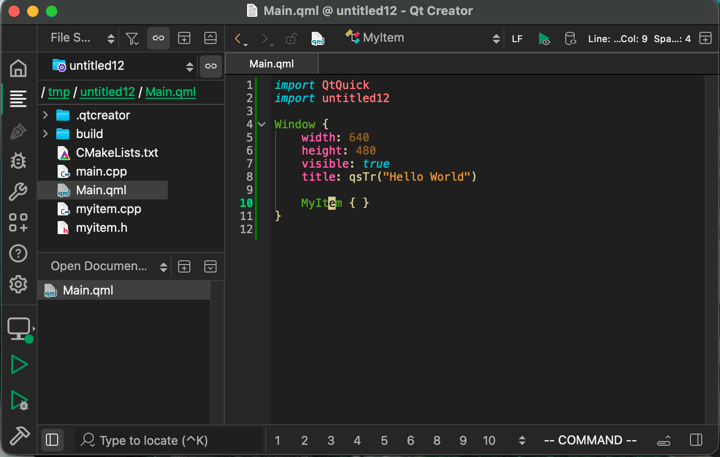
qmlls should make your editor open the C++ file that defines MyItem and position the cursor on the line where MyItem is defined.
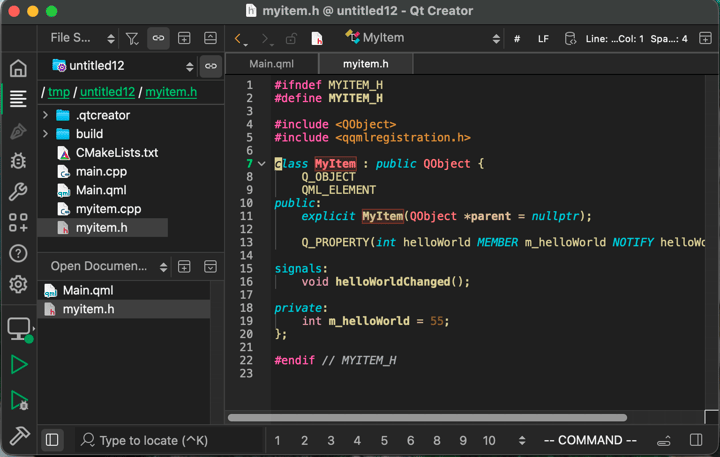
The same should also work for properties, methods, and other members of QML components defined in C++.
You can use the standalone qmlls release to try out this new feature before the Qt 6.11 release. Both Qt Creator and VS Code have an option to download the standalone qmlls version, see here for Qt Creator and here for VS Code.
Multiple project support
Before 6.11, a single instance of qmlls could not support working on multiple QML projects at the same time. Project-specific information, such as import and build paths, was previously global and shared across all opened projects. This used to lead to bugs, such as bogus import warnings during linting, caused by the use of incorrect or unrelated import paths.
With 6.11, we added a way for editors to open multiple projects in qmlls without all the previously mentioned bugs. This provides better support for editors that can't spawn multiple instances of qmlls, such as Visual Studio.
To make qmlls properly open multiple projects in the same instance, editors need to declare the root project folder for each opened project and pass the build path information for each project.
Declaring the root project folder
Editors can use the Language Server Protocol Workspace folder feature to communicate the "project root folders" to language servers like qmlls. Each project root folder has its own settings, including import paths, and QML files are mapped to their project root folder via their file paths.
For example, if there are three workspace folders:
- ~/projects/projectA
- ~/projects/projectA/subproject
- ~/projects/projectB
Then qmlls will open
- ~/projects/projectA/MyComponent.qml in the ~/projects/projectA workspace
- ~/projects/projectA/subproject/MyComponent.qml in the ~/projects/projectA/subproject workspace
- ~/projects/projectA/subproject/subfolder/MyComponent.qml in the ~/projects/projectA/subproject workspace
QML files belonging to no project end up in a fallback workspace folder.
Passing the build path information
Passing build path information is a bit harder when opening multiple projects in the same qmlls instance: information passed via command-line parameters and environment variables is applied to all workspace folders. Therefore, qmlls clients need to pass the build paths for each project separately.
To pass the build path information, the editor can send a $/addBuildDirs notification with an AddBuildDirsParams parameter that contains the mapping from workspace folder to build path.
export interface UriToBuildDir {
    baseUri: URI;
    buildDirs: string[];
}
export interface AddBuildDirsParams {
    buildDirsToSet: UriToBuildDir[];
}
With this information, qmlls loads the project-specific information from the build folders for each workspace folder without mixing up type definitions and import paths across workspaces.
Multiple project support
Imagine the following situation: You have a QML component defined in C++ called MyComponent that you use in a QML file, and you want to modify MyComponent. qmlls can't know about any changes to MyComponent until after a project build. For instance, a recently added property in MyComponent will not be recognized. In this situation, this means that every time you modify MyComponent, you have to build the project before being able to use or adapt the QML usages. This can lead to the following iterative loop:
- Modify MyComponent
- Build the project
- Adapt MyComponent usage in .qml file
- Go to 1. for the next MyComponent modification
where step 2 is likely to be forgotten and adds friction to the development process. Outdated warnings, such as the newly added property not existing, might appear in step 3 if step 2 was forgotten. With the CMake Calls feature, step 2 is automatically done by qmlls.
Triggering a CMake Call
qmlls triggers CMake calls during startup and on C++ header changes. It uses the type information in the build folder to locate and watch headers that define C++ components. A file watcher informs qmlls whenever a C++ header is modified or saved to disk.
The CMake call builds the all_qmltyperegistration CMake target to generate the type information required by qmlls. This target is lighter than a complete project build because it tries to avoid building QML-unrelated parts of the project. To avoid using up too many resources, qmlls uses one job for the CMake calls by default; see here on how to customize it.
For Qt 6.12, it is planned to make qmlls pop up a progress indicator in your editor, if your editor supports it, once a CMake call starts. Qt Creator and VS Code already support the progress indicator functionality. You can cancel the background build from inside your editor via the (x) button on the progress bar. qmlls closes the progress bar once the build finishes, and reloads the information from the build folder to generate new up-to-date qmllint warnings, go-to-definition locations, etc.
Enabling CMake Calls
The feature is disabled by default in Qt Creator and should be enabled by default in VS Code and other editors.
To enable or disable the feature,
- Set the "Enable qmlls's CMake integration" checkbox for Qt Creator.
- Set the "Use no C Make Calls" checkbox for VS Code.
- See the qmlls documentation for other editors.
Summary
We took a look at the new features of qmlls in Qt 6.11: go to C++ definition, multiple project support, and the CMake calls feature, including a small peek at the CMake calls progress indicator coming in Qt 6.12.
Feel free to open a bug report at https://qt-project.atlassian.net/jira/for-you in case you encounter anything weird or not working as expected.