We’re glad to announce that the new Squish AI Assistant Extension has now received a major update, as part of the Squish 9.2 release. All Squish IDE users from version 9.1 onward can now benefit from AI capabilities directly within their test environment - simply upgrade to the latest Squish version and install the Squish AI Assistant extension.
The extension supports integration with LLMs from OpenAI and Mistral AI, and can also be configured to work with local models via the PrivateGPT interface.
Feature Preview Video
Watch our Squish AI Assistant introduction video below and learn more about intelligent support for writing and refactoring test code and better understanding of test failures and logs with AI-powered guidance.
Why an AI Assistant for GUI Testing?
As a professional GUI testing tool with over 20 years of history, Squish has never relied on AI for test automation or object detection - these features were already robust even before the rise of LLMs and AI agents. So, why introduce an AI Assistant now?
The answer is simple: to make the lives of QA and test engineers easier.
We developed the Squish AI Assistant to make the Squish experience faster and more accessible - without compromising on quality. Features like code improvement suggestions, explanations of test failures, or clarifying tricky log messages can make a significant difference in navigating the daily complexity of QA work.
Key Benefits of the Squish AI Assistant
Having an AI assistant integrated directly into the IDE can be a major productivity booster. It accelerates the learning curve for those new to a scripting language and provides helpful insights when unexpected issues arise - such as test failures or communication problems with the AUT (Application Under Test).
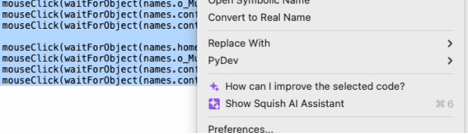
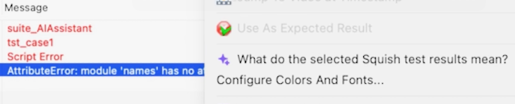
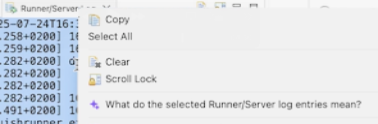
We designed the Squish AI Assistant with three key use cases in mind:
- Improving test code quality:
- Explaining test results:
- Troubleshooting using Squish Runner / Server logs:
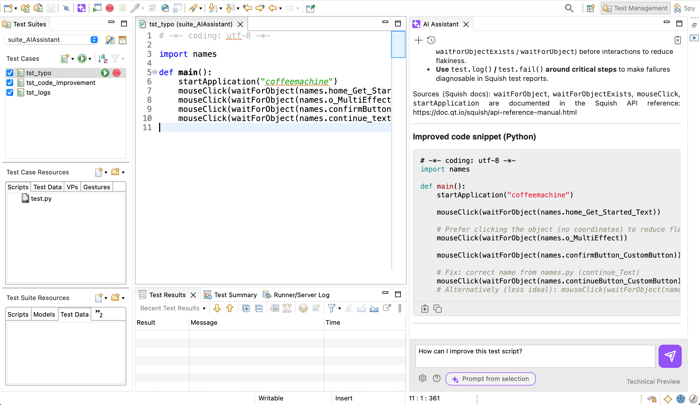
All features are easily accessible from the user interface via application and context menus, or from the dedicated AI Assistant pane.
You can also send custom prompts to the LLM of your choice. Squish provides all relevant context to your prompts, making the Squish AI Assistant a great AI tool for Squish test development.
Getting Started
Installation
The Squish AI Assistant Extension is available as a .zip file from the download section of your Qt Customer Portal: https://account.qt.io/s/qa-software.
It can be installed from the Squish IDE under: ‘Help > Install AI Assistant Extension’
A brief installation wizard will guide you through the setup process and Terms of Service. A restart of the IDE is required afterward.
LLM Setup
The Squish AI Assistant does not include a built-in LLM; instead, you can configure your preferred AI model. This provides flexibility to use either free or paid tiers of your chosen provider.
To configure the LLM, open the ‘Preferences’ dialog and select Squish AI Assistant. You can choose between OpenAI, Mistral AI, or PrivateGPT.
We currently support the following models:
OpenAI: GPT-5, GPT-5 mini, GPT-5 nano, GPT-4.1, GPT-4.1 mini, GPT-4.1 nano, o4 mini
Mistral AI: Mistral Small 3.2, Magistral Small, Devstral Small 1.1, Mistral Medium 3, Codestral 2, Devstral Medium, Mistral Large 2.1
PrivateGPT supports several LLM backends and can be configured for different use cases. Please refer to the official documentation to determine the best solution for your needs
https://docs.privategpt.dev/manual/advanced-setup/llm-backends
Squish AI Assistant in Action
Once configured, you can open the AI Assistant view from the toolbar or via right-click context menus, and begin interacting with the LLM.
Context-specific AI actions are available in the code editor, Test Results view, and the Squish Runner / Server Log. These actions trigger predefined prompts, and responses are shown in the AI Assistant pane.
To review or modify a predefined prompt, use the ‘Prompt from selection’ button and make changes before sending it.
Find more details about the Squish AI Assistant in the documentation:
https://doc.qt.io/squish/squish-ai-assistant.html
Conclusion
With its intuitive actions and flexible configuration options, Squish AI Assistant marks the first step into AI integration for the Squish IDE. It’s designed to streamline testers' workflows and boost productivity.
As this is a technical preview, we’re actively improving it - so don’t hesitate to try it out with the latest Squish IDE version and share your feedback.