Oct 27, 2026
Comments
When we announced Qt Bridges at Qt World Summit 2025, we had a simple goal: let developers build Qt Quick user interfaces with a backend written in their favorite programming languages. This year, the C# and Rust bridges went through several public betas. Thank you to everyone who tried them and sent feedback. It shaped every release.
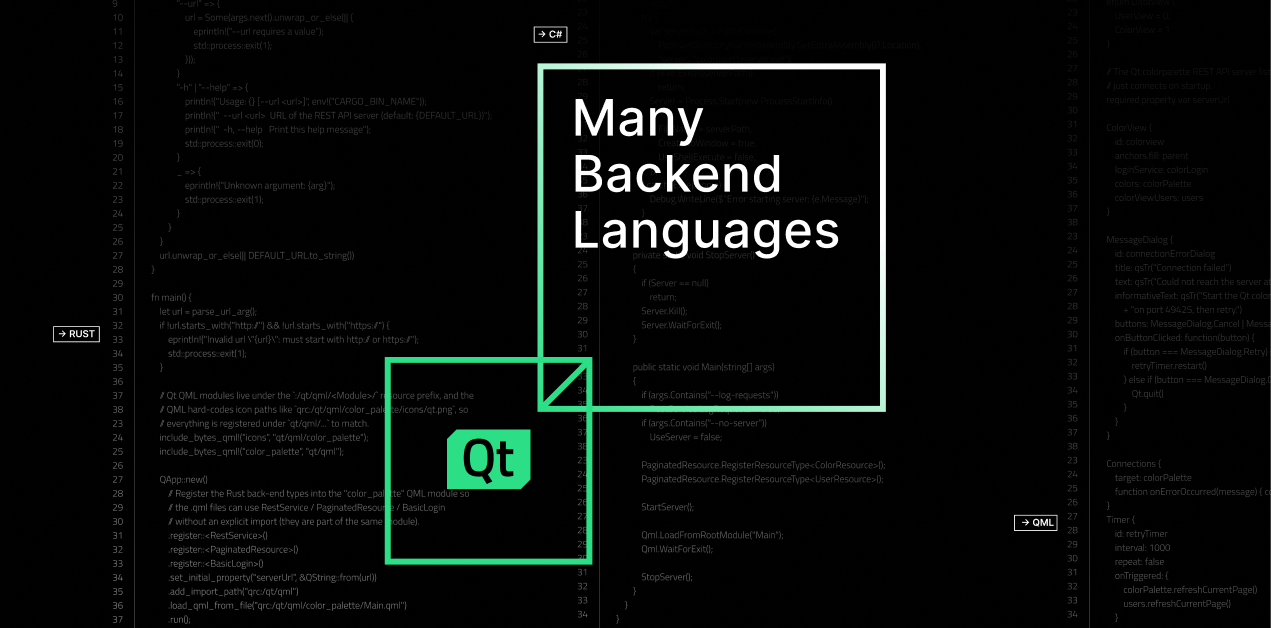
Today the Qt Bridge for Rust and the Qt Bridge for C# both reach Technology Preview.
What are Qt Bridges?
When developing Qt Bridges, we were guided with a few simple guidelines
- Modern UIs should be easy to develop
- They need to work on every desktop platform (with embedded and more coming soon)
- Users should be able to reuse existing codebases
In practice, Qt Bridges applications have two parts. The user interface is written in QML with Qt Quick while backend is written in Rust or C#. You mark the types the UI should see, using the usual mechanism of your language (attributes in C#, attribute macros in Rust). QML can then read and bind to their properties, call their methods, react to their signals, and show their collections in lists and tables. You don't need hand-written glue or deep Qt knowledge. Because the UI depends only on what the backend exposes, you can change either side independently.
Qt Bridges is not a full binding of Qt API. It focuses on connecting your backend to a Qt Quick UI. For networking, file I/O and everything else, you keep using the libraries of your own ecosystem.
What a Technology Preview means
The Technology Preview is the step between our betas and a first stable release. The core feature set is in place and ready for prototypes and evaluation projects. APIs, supported platforms and requirements can still change before the stable release, and your feedback now has the most influence on what ships.
Qt Bridge for Rust
The Qt Bridge for Rust lets you build Qt Quick UIs with a backend in idiomatic Rust: no C++ headers, no manual FFI and no prior Qt experience needed. The API is built on attribute macros and traits. The ownership model maps QML objects to Rc<RefCell<T>>, so borrow rules apply across the boundary, and the bridge shares its foundations with CXX-Qt, so the two can coexist.
With the Rust bridge you can:
- Expose Rust structs to QML with #[qobject], and define properties, slots and signals with #[qproperty], #[qslot] and #[qsignal]
- Bind QML views to Rust collections
- Build and interact with the QML object tree from Rust
- Invoke methods across threads, for example, from a tokio runtime
All of the details about using Qt Bridge with rust can be found in our docs.
Qt Bridge for C#
The Qt Bridge for C# is for .NET teams that want a modern, cross-platform UI without rewriting their application. Your C# code stays as it is, and you add a Qt Quick frontend on top.
With the C# bridge you can:
- Expose C# objects to QML elements
- Read, write and bind C# properties from QML
- Invoke C# methods and handle C# events
- Bind QML views to C# collections
Check out the docs at to learn more!
Visual Studio extension
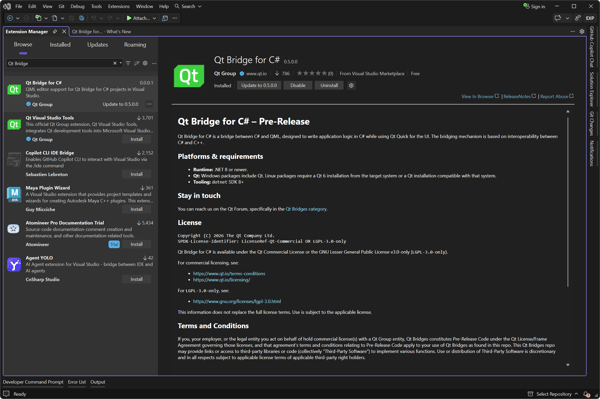
On Windows, the Qt Bridge for C# extension for Visual Studio is the easiest way to start. It adds project and item templates, so you don't need to install the dotnet templates separately. Projects created with it reference the right NuGet package automatically. It also enables QML language server support, giving you QML IntelliSense for your C# types once the project is built.
- In Visual Studio, open Extensions > Manage Extensions…, search for Qt Bridge for C# and install it
- Create a new project with File > New > Project, search for QML, and select the QML Application template
- Optionally, select Add sample code to project
- Press F5 to build and run
VS Code extension
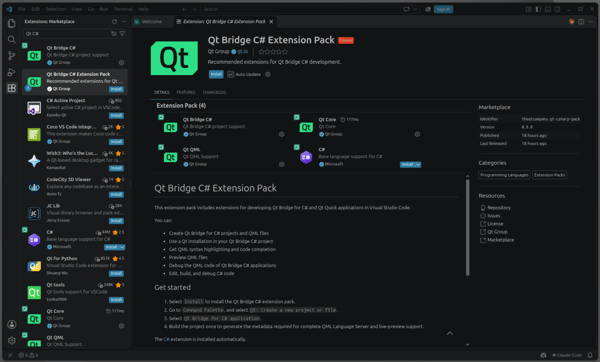
If you work in Visual Studio Code, on any platform, install the Qt Bridge C# extension for VS Code. It connects Qt Bridge for C# projects to the Qt Extension for VS Code, providing:
- Project discovery, including multi-project workspaces
- Qt installation lookup, with a Qt Bridge C#: Select Qt Installation command when no Qt is found
- QML language server support and live QML Preview for your C# types
- A ready-made QML debugging configuration in new projects
To create a project, run Qt: Create a new project or file and select Qt Bridge for C# application. Build once so the extension can generate the metadata used by the QML tooling. The extension requires the Qt Core extension. We also recommend the Qt QML extension, plus C# Dev Kit for C# editing and debugging.
Learn more about the Bridges directly from the team
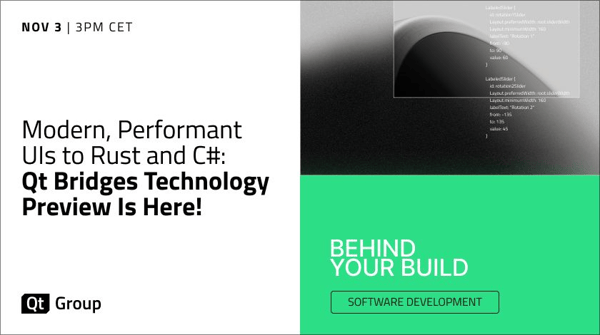
Join Cristián Maureira-Fredes and Matthias Rauter for a Qt World Summit webinar Modern, Performant UIs to Rust and C#: Qt Bridges Technology Preview Is Here! on 3 November 2026 at 15:00 (UTC+1). They will cover the motivation behind the project and demo both Technology Previews.
What’s next
We are planning bring Qt Bridges out of Technology Preview in first quarter of 2027 with a few more features.
Your feedback during the Technology Preview helps us most. Tell us what works, what's missing and what gets in your way:
- Chat with the team and other developers on Discord
- Discuss on the Qt Forum in the Qt Bridges category
- Report issues in Jira. For the VS Code extension, use the VS Code extension project.
- Sign up for Qt Bridges updates
We look forward to seeing what you build!
Blog Topics
Related Articles
Qt Bridge for Rust 0.3 Beta: CXX-Qt Compatibility and Soundness
As part of the on-going development of Qt Bridges, we are out with a new..
Read Article
A Cross-Platform C# UI Framework via Qt’s Bridging Technology
Every C# UI framework comes with a familiar pattern: Windows-first, Linux..
Read Article