Jun 24, 2026
Comments
For those who are not yet familiar with the new Qt Canvas Painter, please check the previous blog posts: Introduction, new features, and performance measurements. This blog post introduces paths and path groups to further improve the performance.
Common hardware accelerated rendering wisdom says that imperative painting is slow while declarative painting is fast. The basic reasoning behind this is that GPUs like owning the data and excel in parallel processing. Moving data from CPU to GPU can cause bottlenecks in this parallel processing. Declarative UI methods, using a scene graph type of approach, can track which parts of the UI actually need updating and minimize the amount of updates, thus improving the performance.
This is logical, but I would claim that imperative painting does not need to be slow. After all, Vulkan, Metal etc. low-level graphics APIs are both imperative and fast. I prefer to use the term direct when painting directly onto the screen, while you can paint imperatively also into other buffers than a screen. While the Qt Canvas Painter direct painting has been optimized to be extremely fast, we also offer a QCanvasPath class for managing the paths.
Let's start with a very simple example, painting a custom line graph like this:

The code when painting this directly with QCanvasPainter looks like this:
p->beginPath();
p->moveTo(data[0]);
for (int i = 1; i < 40; i++)
    p->lineTo(data[i]);
p->setLineWidth(10);
p->setStrokeStyle(lineGradient);
p->stroke();
QCanvasPainter is very performant and rendering the above graph with 40 line sections is a breeze. But what if it was a more complex path, and you would desire not to regenerate it on every frame? Enter QCanvasPath. To achieve exactly the same output using QCanvasPath, the code would be:
if (m_path.isEmpty()) {
    m_path.moveTo(data[0]);
    for (int i = 1; i < 40; i++)
        m_path.lineTo(data[i]);
}
p->setLineWidth(10);
p->setStrokeStyle(lineGradient);
p->stroke(m_path, 1);
By looking at the code, you should notice a few interesting things:
-
The painting code looks very similar. This is by design, having exactly the same painting API on QCanvasPath as on QCanvasPainter makes it easy to port the code between painting directly and painting through a path.
-
As the path is empty only on the first frame, consecutive frames will skip the for loop entirely and just paint the existing path.
-
There is some mystical number parameter for the stroke method. This is an optional path group to cache the vertex buffer and further improve the performance.
Another great thing about the path approach is that, with a few extra lines like these..
...
p->setLineWidth(20);
p->setStrokeStyle(Qt::black);
p->setAntialias(10);
p->translate(-2, 4);
p->stroke(m_path, 1);
...
..it is possible to add a smooth shadow with just a little extra overhead as we are re-using the same path:

QCanvasPath vs. QPainterPath
Someone might wonder why Canvas Painter doesn't just use the existing QPainterPath class? That is a valid question and one that deserves a proper explanation. Firstly, Canvas Painter does use a lot of utility classes from QtGui (QColor, QFont, QImage, QTransform, QRectF etc.) so the reason is not that we just wanted to be different. I would summarize the three most important reasons to have the own path class:
-
API consistency: It is important from a usability point of view that QCanvasPath shares 1:1 the path painting API with QCanvasPainter. This makes it easy to switch painting code between direct painting and path painting. We also want an API that matches HTML canvas Path2D.
-
Data format: QCanvasPath consumes generally about 60% less memory than QPainterPath. The internal data format is also more CPU cache friendly (SoA vs. AoS). As the path data format is exactly the same as in QCanvasPainter, the add / fill / stroke of a path can be just a memcpy, which makes it very efficient.
-
Caching: As we are in full control of the paths, it is also easier to build an effective caching strategy. When the path doesn't change, its data can be utilized directly as the data format is shared. Additionally, we can do GPU side caching where static paths can be maintained in the vertex buffer and repainting becomes a very cheap operation.
Now that we are familiar with the QCanvasPath basics, let's dive into path groups and the effects on performance.
Path Groups
QCanvasPath groups are a way to group paths that relate to each other. This is a novel feature that the HTML canvas 2d context doesn't support and neither does QPainter & QPainterPath. But as Qt Canvas Painter is natively HW accelerated with QRhi, we decided to implement it. Behind the scenes, a single path group matches to a single vertex buffer, so each group should contain paths that often need to be updated at the same time. That way, the number of vertex buffers and the number of vertices that need to be updated on each frame are optimal.
Path group is just an extra integer parameter for stroke() and fill() methods for a few reasons:
-
To keep the API as close to the HTML canvas 2d context API as possible. It is just an optional extra parameter over these methods that can be used if/when you want to do extra optimization.
-
To have the freedom in grouping, as the needs can be very different and change during the lifetime of application. Groups can be handled as C++ enums, so they could be named e.g. STATIC_PATHS, DYNAMIC_PATHS, ICON_PATHS, SHARK_BACKGROUND_PATHS or whatever the UI needs.
- To work well also with the upcoming Canvas2D QML element. More about this later.
Qt Canvas Painter automatically invalidates the paths when needed. There is comprehensive documentation about this, but basically the path needs to be regenerated when vertices need updating, so when e.g. the stroke line width is different or cap/join type has changed. So, for optimal performance, avoid these changes with the cached paths. But it is also good to know what doesn't invalidate the path. For example, transforms (translate, rotate, scale) for paths are done on the GPU, so they are very fast. Also, changing the fill/stroke brush doesn't invalidate the path, so animating the colors and gradients is also very fast. To visualize this, here is a video showing our path tester example application:
As visible in the video, when the number of line segments grows up to 1 million, both direct painting and non-cached path painting start to be slow as expected. However, when switching the path caching on, even a million line segments render buttery smooth. And neither transforming the path nor animating the brush cause a drop in performance, as those don't require updating the vertex buffer.
Progressive rendering
So we have now learned that paths that don't change on every frame, can be painted through QCanvasPaths to improve performance. But also UIs with constantly animating paths may gain from QCanvasPaths, especially when optimizing for embedded devices.
Progressive rendering as a term here, means dividing the rendering workload into different frames to achieve a better overall performance and lower CPU & GPU consumption. With a traditional 60Hz screen, a single frame has 16ms to display a newly rendered frame. If this time is exceeded, the frames are dropped as we don't reach the full synchronized screen frame rate. To fix this, one approach could be dropping the screen refresh rate to e.g. half. But that is not optimal if there are some parts of the UI where full 60Hz animations would be desired.
One general solution Qt Quick offers for progressive rendering is using item layers, like making individual frames live on odd/even frames using FrameAnimation. This requires some manual animation work and caching the layer textures, but can be a valid approach. With QCanvasPainterItem, this is even easier as the item is backed by a texture implicitly, so all that is required is calling the item update() only when the content really needs to be updated. But these approaches work only when the whole item should render progressively, not when parts of the item should be constantly updated and other parts less frequently.
QCanvasPath and the path groups offer another way to do progressive rendering: caching the path's vertex buffers instead of layer textures. This allows more fine-grained behavior, caching only parts of the item. Let's evaluate this with an example UI that could match medical/industry needs: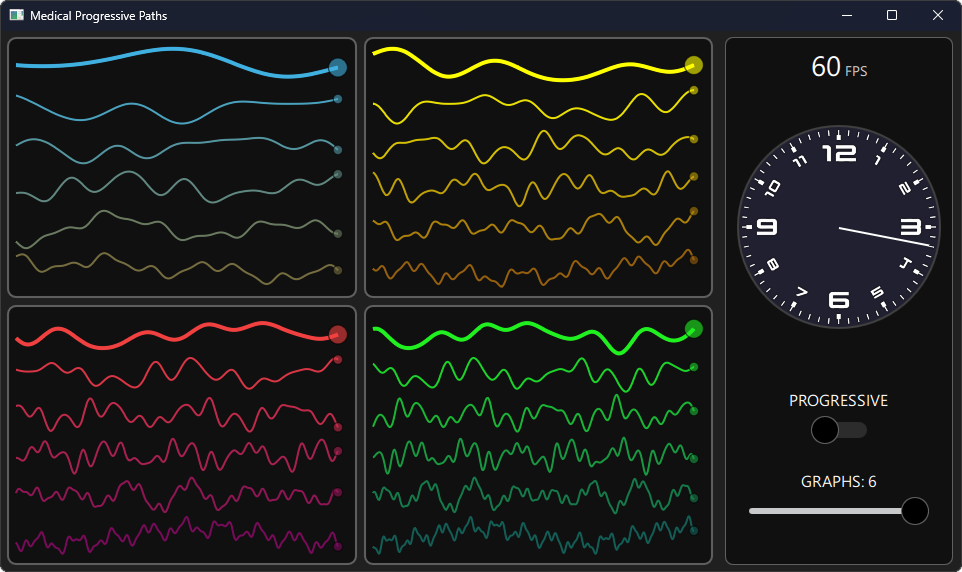
The UI in this case has 4 graph components, each with several live plotting line graphs. The target hardware would be an embedded device that isn't capable of rendering all those graphs at the full screen refresh rate. But the UI also contains a timer component on the right side of the screen which needs to be highly accurate and updated at full speed. The thicker main graphs would also need to be updated at full speed, but the other thinner graphs don't actually need to update that frequently. It might be that we don't even get data from sensors / databases that fast, so it is enough to update them 15 times per second (15Hz). And we would also like to keep the CPU & GPU load lower for increased battery life.
To achieve this, we use QCanvasPath and paint each graph item into its own path group. Then update just a single graph per frame with a code like this:
...
m_frame++;
m_update = (m_frame % 4 == m_graphIndex);
if (m_update) {
    m_path.clear();
    .. recreate the graph ..
}
...
With these rather simple changes, our UI achieves lower CPU & GPU usage and an overall steady 60fps when progressive rendering is enabled. Here is a video demonstrating the behavior on a low-end Android tablet (Lenovo Tab M10 HD, Mediatek MT6762 + PowerVR GE8320):
Conclusions
If you haven't yet tried Qt Canvas Painter, you definitely should. Qt 6.12.0 Beta 1 was just recently released and as the Qt Canvas Painter will graduate to a fully supported module in Qt 6.12, testing and providing feedback now will be highly beneficial. Also, Qt 6.12 will contain the new Canvas2D QML element which brings Canvas Painter smoothness to QML JavaScript. More about that later, but for now: Happy hacking and great summer to everyone!
Blog Topics
Related Articles
Canvas2D: New QML canvas element using Qt Canvas Painter
In the earlier blog posts about Qt Canvas Painter we have looked at what..
Read Article
A Cross-Platform C# UI Framework via Qt’s Bridging Technology
Every C# UI framework comes with a familiar pattern: Windows-first, Linux..
Read Article
QML and C# without C++: Qt Bridge for C# 0.4.0 Beta Released
As part of the on-going development of Qt Bridges, and beyond the two Beta..
Read Article