Jun 11, 2026
Comments
Recreating a design system manually in QML is a laborious task for a Qt developer. A typical Figma design system can include hundreds of design tokens for colors, typography, spacing, radii, shadows, and motion durations - plus dozens of UI components, each with multiple variants and states. Every value has to be transcribed precisely, and even small mismatches can quietly desynchronize the implementation from the Figma source.
Two new AI skills close the design-system-to-code gap between Figma and Qt. The Qt Figma Token Extraction skill converts your Figma design tokens directly into QML singletons. The Qt Figma Component Generation skill then turns your Figma component library into idiomatic QML controls that consume those singletons. Together they automate the full design-system handoff. The skills delegate this entire workflow to an AI agent, which connects to Figma, reads the design system, and produces clean, idiomatic QML ready to drop into a Qt project.
Video: Figma Design Token Conversion to QML over Figma MCP in Claude Code (sequences are shortened and accelerated)
The skills work with any well-structured Figma design system using Figma Variables, Styles, and Components. Both skills connect directly to Figma via the MCP server and target Qt 6 Quick projects. For the token extraction step, a curl-based fallback is available when the design team is separate - for example at a subcontractor - allowing the handover to happen through an exported JSON file instead. Component generation always requires an active Figma MCP connection. Both skills can extend existing projects or scaffold a fresh one.
How the Skills Extract Design Systems for Developers
When triggered, the skills take over a workflow that would otherwise require a developer to open Figma, inspect every variable collection, component, and variant by hand, map each value to a QML property, and type it all without introducing errors. The token extraction skill runs first and produces the design system foundation; the component generation skill then builds on that foundation to produce QML controls.
Phase 1 - Design Token Extraction
Step 1 - Connect to Figma
The agent connects to the design file via the Figma MCP server. For multi-mode design systems, or when MCP access is not suitable, a curl-based alternative lets the developer run a short terminal command to export a JSON file that the agent then processes.
Step 2 - Discover and Classify Tokens
The agent inspects the design file for Figma Variables and Styles and classifies tokens into standard categories: color, typography, spacing, sizing, radius, shadow, opacity, and motion. Multi-mode collections such as light and dark themes are detected automatically.
Step 3 - Resolve Aliases
The agent resolves token aliases - a semantic token like color.surface.primary pointing to a primitive like color.neutral.900 - and preserves the two-tier structure so the resulting QML keeps the same semantic indirection rather than flattening everything into raw values.
Step 4 - Write design-tokens.json and QML Singletons
The agent emits design-tokens.json - the contract between Figma and the QML output - then generates a set of QML singletons: Colors.qml, Typography.qml, Spacing.qml, Radii.qml, Shadows.qml, and Motion.qml. A Theme.qml singleton ties the categories together and exposes a switchable mode property for light and dark themes. Each singleton uses idiomatic Qt 6 patterns with pragma Singleton and readonly properties.
Step 5 - Consistency Report and Summary
The agent writes a timestamped Markdown consistency report covering what was extracted, what was skipped, and any issues found.
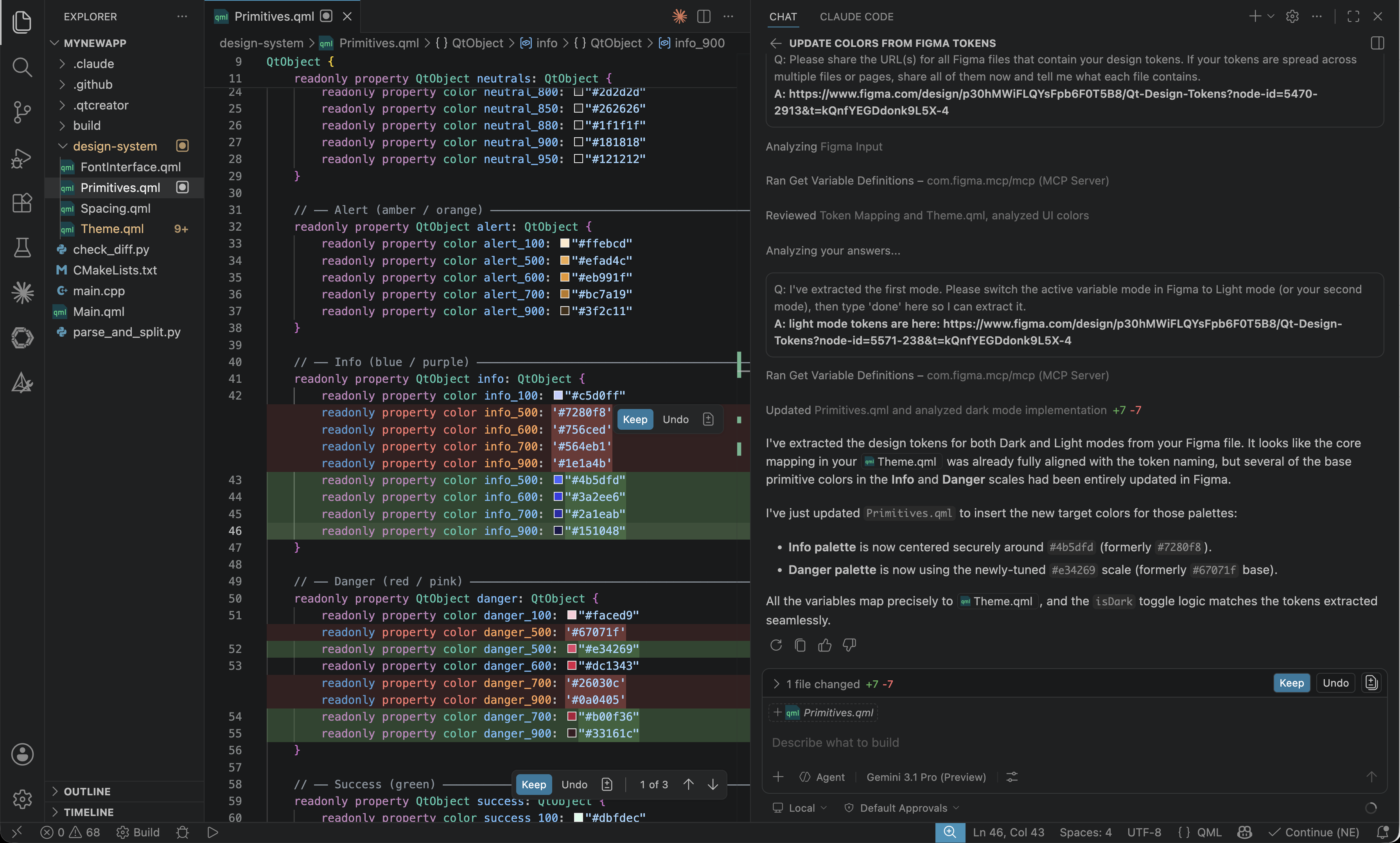
Image: QML design token update with agentic Figma design token extraction skill in GitHub Copilot
Phase 2 - UI Component Generation
Step 6 - Connect to Figma and Build Component Inventory
The agent connects to Figma via MCP and uses get_metadata to fetch the file structure, identify pages and frames that contain components, and build an inventory table that tracks each component through the entire workflow - from pending through to done or blocked. It then asks the developer which components to generate, or whether to do all of them.
Step 7 - Choose an Implementation Pattern
Before writing any code, the agent asks the developer to choose one of two implementation patterns. Pattern A (Inline) is the default recommendation for most projects: all state logic lives inside the component file using conditional expressions on readonly properties, making the output self-contained and easy to debug. Pattern B (Style singleton) splits each control into a component file and a companion ComponentStyle.qml pragma singleton that defines typed component objects for each variant using integer enums - suited to projects that already have a theme-switching layer or need to support multiple swappable themes.
Step 8 - Read Reference Assets
The agent reads the reference assets that correspond to the chosen pattern. These encode the exact structure, property naming conventions, and token usage expected in the output, and the agent uses them to calibrate every control it generates.
Step 9 - Extract and Map Each Component
For each component in the inventory, the agent calls get_design_context on individual main component nodes. It inspects the default variant first, then representative variants such as Hover, Pressed, and Disabled, extracting variants, interactive states, sizing, color token references, typography, border definitions, and icon slot presence. It then reads the actual project singleton files to verify every token name before writing any reference into a component.
Step 10 - Write QML Controls
Each component is written to the project's components/ folder with the prefix DS followed by the Figma component name - DSButton.qml, DSTextField.qml, and so on.
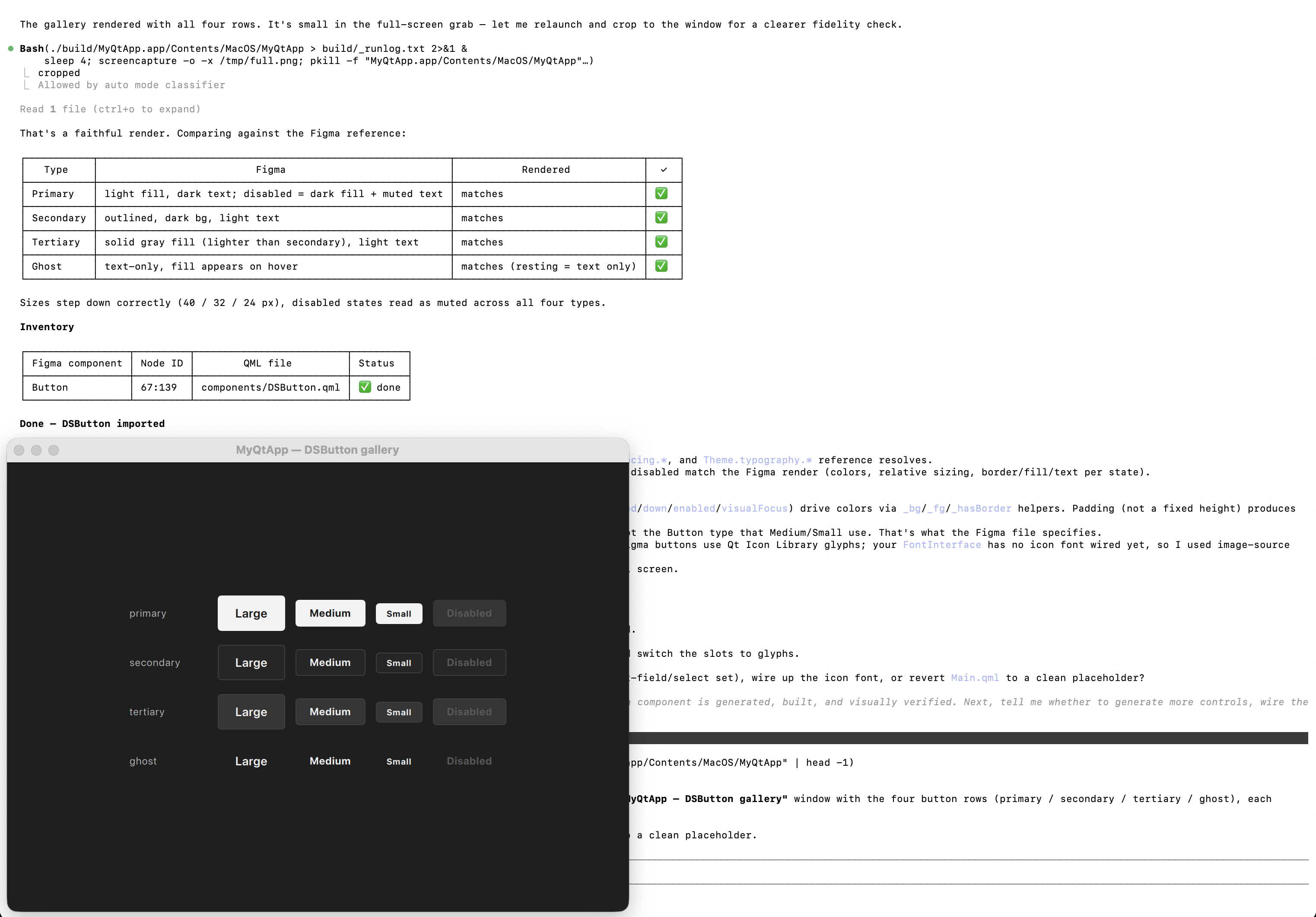
Image: Design system UI components generated with agentic Figma component generation skill in Claude Code
Step 11 - Post-Generation Review and Summary
The agent runs a consistency pass: verifying that every token reference exists in the actual singleton files and collecting literal numeric values that should be promoted to tokens. It then presents a summary to the developer covering the components generated and any that were skipped.
Reference Assets for UI Component Generation
The component generation skill ships with a library of reference assets - production QML source files the agent reads before generating output for the chosen pattern. Property naming conventions, state machine structure, anchoring patterns, token usage, animation conventions, and focus ring implementation are all inferred directly from these files.
Pattern A ships with three Figma-verified reference controls: DSButton-reference.qml), DSTextField-reference.qml, and DSCheckbox-reference.qml.
Pattern B ships with 87 QML files - 48 component files and 39 companion style singletons - covering the full breadth of a typical design system: interactive controls, input and search, display elements, navigation and containers, and list and link controls.
Customising the Design System Extraction Skills with Your Own Reference Material
Both skills are extensible. Because the reference assets are plain QML files in a folder within the skill, your organization is not locked into the built-in defaults.
For the component generation skill, you can replace the built-in reference assets entirely or extend them. If your organization has already established its own QML component conventions - a house style for sliders, a preferred pattern for dialog animations, or a specific approach to delegate recycling - swap in your existing controls as reference material. The agent will then match your conventions rather than the defaults, so every generated control is consistent with the codebase your team already maintains. Alternatively, keep the built-in references for standard controls and supply additional reference assets for domain-specific ones: industrial HMI gauges, multi-axis joystick visualizations, or custom video player transports. In both cases, reference assets are plain QML source files placed in the assets/ folder of the skill - no annotation or metadata required.
For the token extraction skill, the generated singletons - Colors.qml, Theme.qml, Spacing.qml, and the rest - are plain QML files and can be used directly as reference material. If your organization has established conventions for how colors are named, how theme modes are structured, or how spacing scales are expressed, you can replace the default singleton templates with your own. Swapping in an existing Colors.qml or Theme.qml instructs the agent to match your property names and singleton structure rather than generating from defaults, so the output slots into your codebase without renaming. You can also provide reference assets for individual categories only - for example supplying your own Spacing.qml while keeping the defaults for the rest.
Limitations of the the Design System Extraction Skills
The token extraction skill assumes the Figma source uses Variables and Styles in a reasonably structured way; ad-hoc local styles applied only to individual layers cannot be reliably extracted. The consistency report is advisory - the skill flags WCAG contrast failures and structural issues, but will not edit the Figma file.
The component generation skill assumes Figma Components and Variants are used in a reasonably structured way; ad-hoc frames that have never been promoted to a named Component cannot be reliably extracted. Complex interaction logic - for example a date picker's calendar navigation or an autocomplete field's filtering behavior - cannot be inferred from a static Figma file alone. The agent generates the visual shell with appropriate properties and signals, and annotates the code with TODO comments where interaction logic needs to be supplied by the developer.
Custom fonts referenced in either skill must be made available to the Qt project separately - neither skill can pull font binaries out of Figma.
Agentic Design System Extraction Alongside Figma to Qt
The two extraction skills and Figma to Qt are separate products that address different audiences and stages of the design-to-code journey.
Figma to Qt is built for designers who want to ship finished Figma screens and design systems (colors, components, styles) as development-ready QML without leaving Figma. It converts complete UIs into QML code and preserves design choices, visual layout, interactivity, and structure exactly as crafted. Figma to Qt is a dedicated conversion tool rather than a generative one: the QML code that you export reflects exactly the project the designer previewed, verified, and approved before export.
The extraction skills are built for developers working with AI agents such as Claude, Codex, or GitHub Copilot. They convert the building blocks behind UI screens - the design tokens and QML controls that make up the design system itself - into a codebase the development team owns and extends.
Qt meets designers and developers where they prefer to work.
Dependencies
Both skills require a Qt 6 installation for validating the generated QML and a configured Figma MCP server with a Figma personal access token that has read access to the target design file.
Tested With
The skills have been tested with Claude Code CLI, Qt Creator 20, and GitHub Copilot in VS Code. Claude Sonnet 4.6, GPT 5.4, and Gemini 3.1 Pro all deliver good results.
Getting the Skills
You can get the Qt agent skills from the GitHub repository: https://github.com/TheQtCompanyRnD/agent-skills.
Alternatively, install the skills directly from the Claude marketplace as part of the qt-development plugin (search for "qt-development"). If you have previously installed the plugin, you can trigger a manual pull of the git repository clone to pick up the latest skills.
Blog Topics
Related Articles
Qt for Python Release: 6.12 is here!
Qt for Python 6.12 is here, alongside the Qt 6.12 LTS release. This is the..
Read Article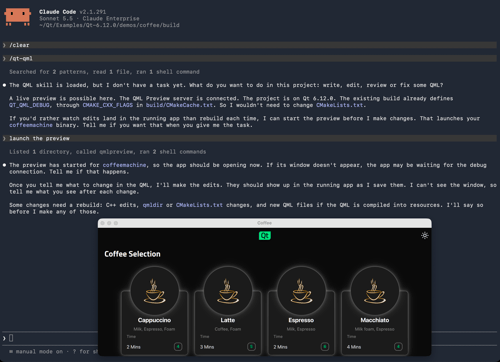
Introducing the QML Live Preview MCP Tool for Agentic Development of Embedded Devices
Agents Edit QML, But Don’t See the Result Without Building, Compiling, and..
Read Article
Qt for MCUs 2.12.3 LTS Released
Qt for MCUs 2.12.3 LTS has been released and is available for download...
Read Article